Campaigns
The Campaigns Management section defines how outbound (and optionally inbound) campaigns are configured, executed, and controlled. It governs dialing behavior, agent interaction, and operational rules applied to groups of leads.
- Campaign Definition
- List of Campaigns
- Create campaign
- Edit Campaign
- Delete Campaigns
- How to Pause a Campaign
- How to turn off a Campaign
- Lead Selection Rules
- Scheduling and Time Windows
- Agent Assignment
- Scripts and Agent Interface
- Call Routing and Handling
- Compliance Controls
- Integrations
- Performance and Scalability
- Edge Cases
Campaign Definition
A campaign is a structured set of communication activities within the system, created with a specific purpose in mind. This purpose may include sales, collections, customer support, or surveys.
Each campaign brings together key elements such as contact lists (leads), assigned agents, dialing methods, and specific configurations. This allows you to control how and when calls are made, as well as track the results effectively.
In simple terms, a campaign defines what will be done, how it will be done, and which resources will be used, making it easier to manage and organize daily operations within the system.
Typical attributes:
- Campaign Name
This is the name used to identify the campaign. It should be clear and descriptive so it can be easily recognized. - Type (Outbound, Inbound, Blended)
Defines how the campaign operates. Outbound campaigns are used for making calls, inbound campaigns handle incoming calls, and blended campaigns manage both. - Associated Lead Lists
These are the contact lists linked to the campaign. The system will use these lists to determine which leads will be contacted. - Status (Active, Paused, Completed)
Indicates the current state of the campaign. An active campaign is running, a paused campaign is temporarily stopped, and a completed campaign has finished its operation. - Description / Metadata
Additional information used to provide context or details about the campaign. This may include notes, tags, or any relevant data for management and reporting purposes.
Campaign Types
- Preview Dialing
Allows the agent to review the lead information before placing the call. This is useful when preparation or context is required prior to contacting the customer. - croco mode dialing
Automatically places one call per available agent. This ensures a steady call flow while maintaining control over agent availability. - Predictive Dialing
Uses an automated pacing algorithm that adjusts call volume based on agent availability. This helps maximize efficiency by reducing idle time. - Power Dialing
Dials a fixed number of calls per agent simultaneously. This method increases call volume and is typically used in high-intensity outbound operations.
Dialing Strategy
- Dialing Mode (Preview, Progressive, Predictive, Power)
Determines the method used to place calls within the campaign, based on how agents interact with leads and how calls are distributed. - Calls per Agent Ratio
Specifies the number of calls assigned to each agent, helping balance workload and call volume. - Pacing Configuration (for Predictive Dialing)
Adjusts the dialing speed based on agent availability, ensuring an efficient flow of calls while minimizing idle time. - Abandon Rate Control
Regulates the percentage of calls that may be abandoned, helping maintain compliance and improve customer experience.
List of Campaigns
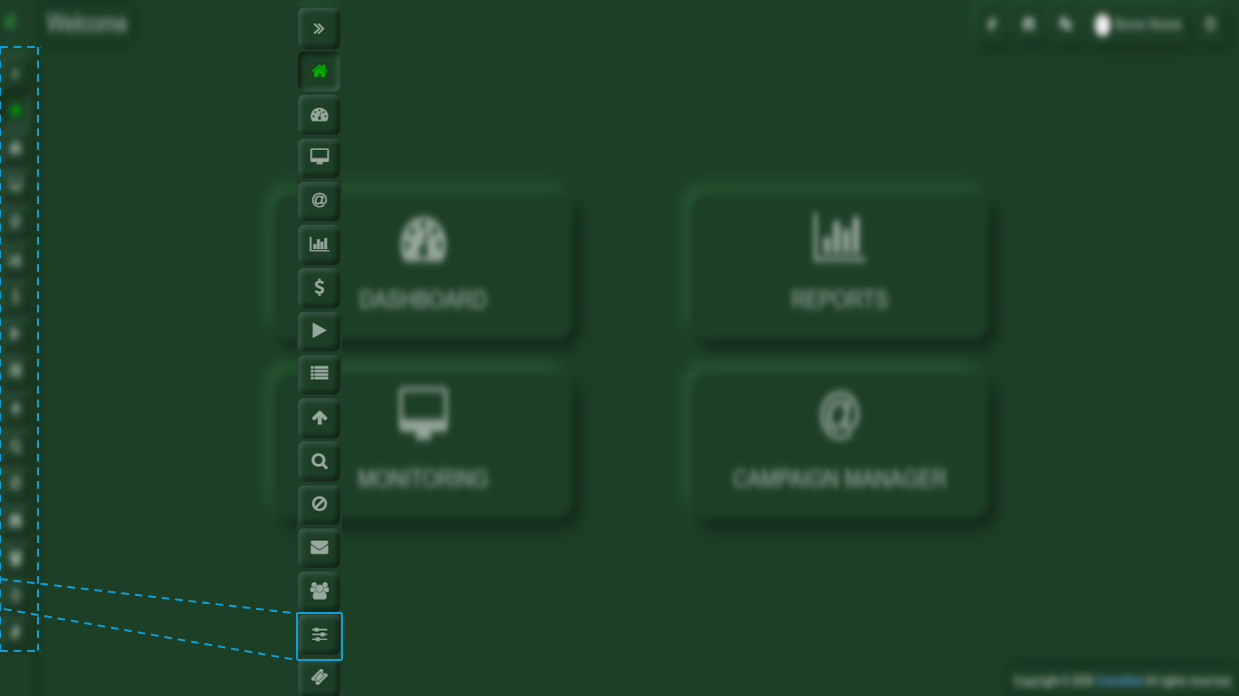
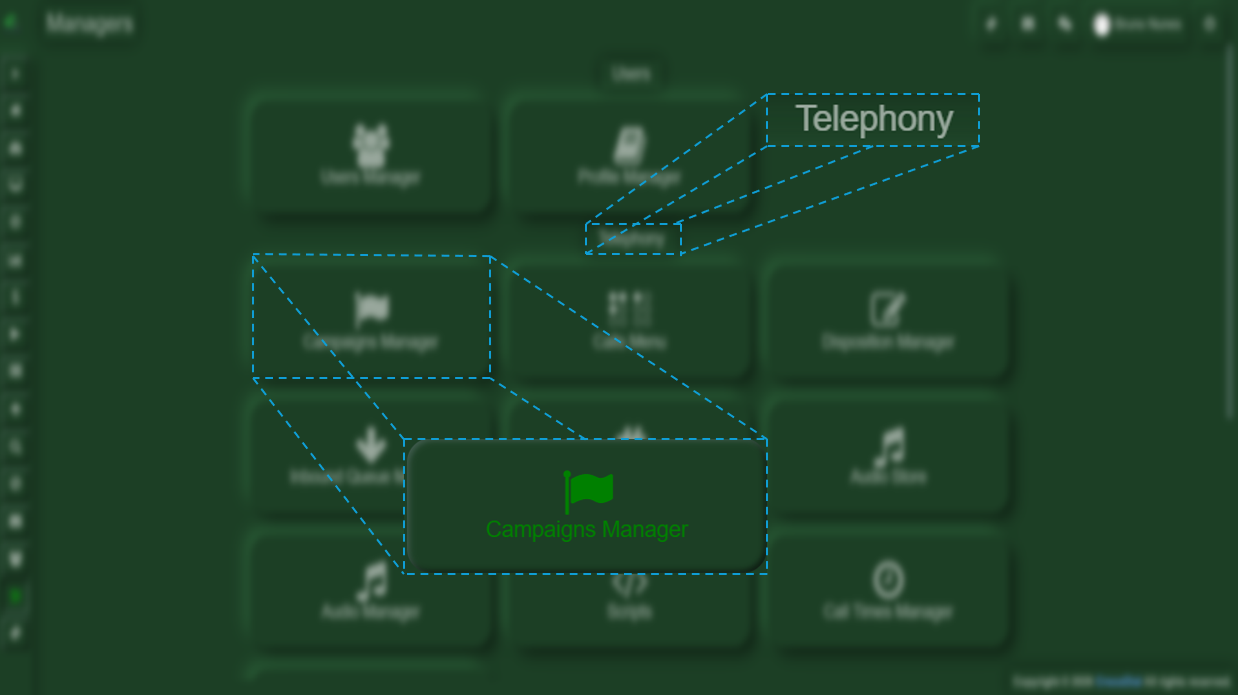
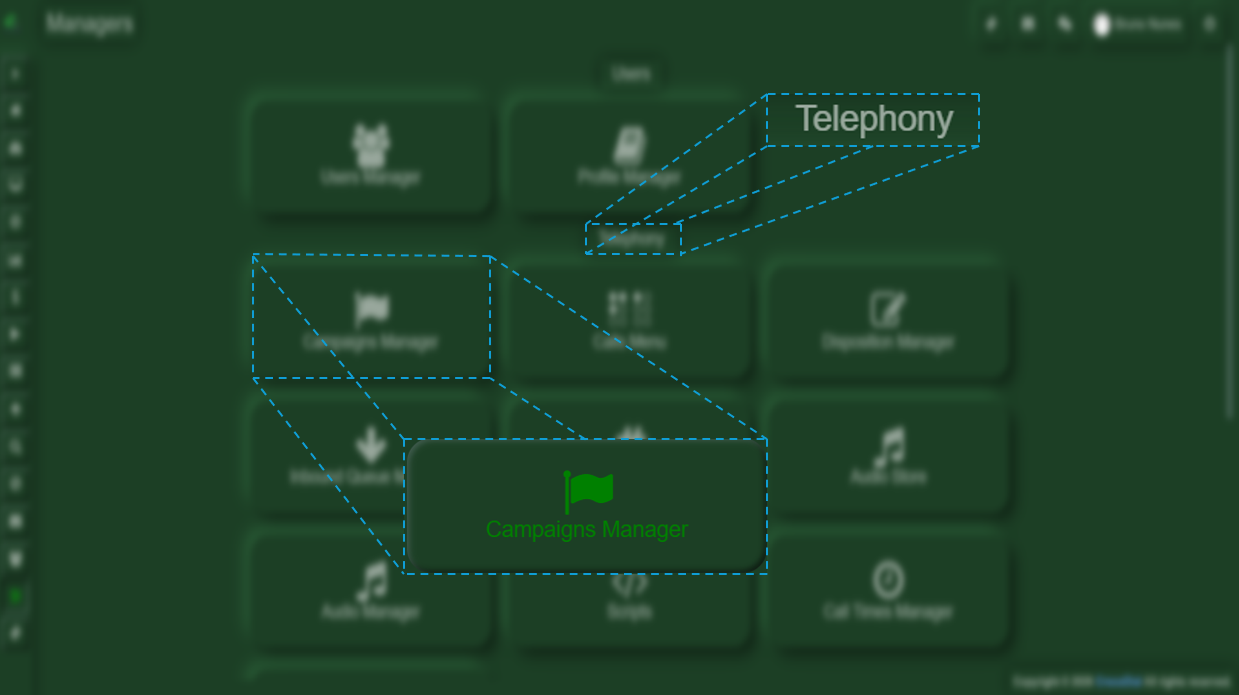
Once you are inside Crocodial, you will see the menu bar on the left-hand side. In this bar, you will find the Manager option. Upon selecting it, a menu with various options will be displayed.
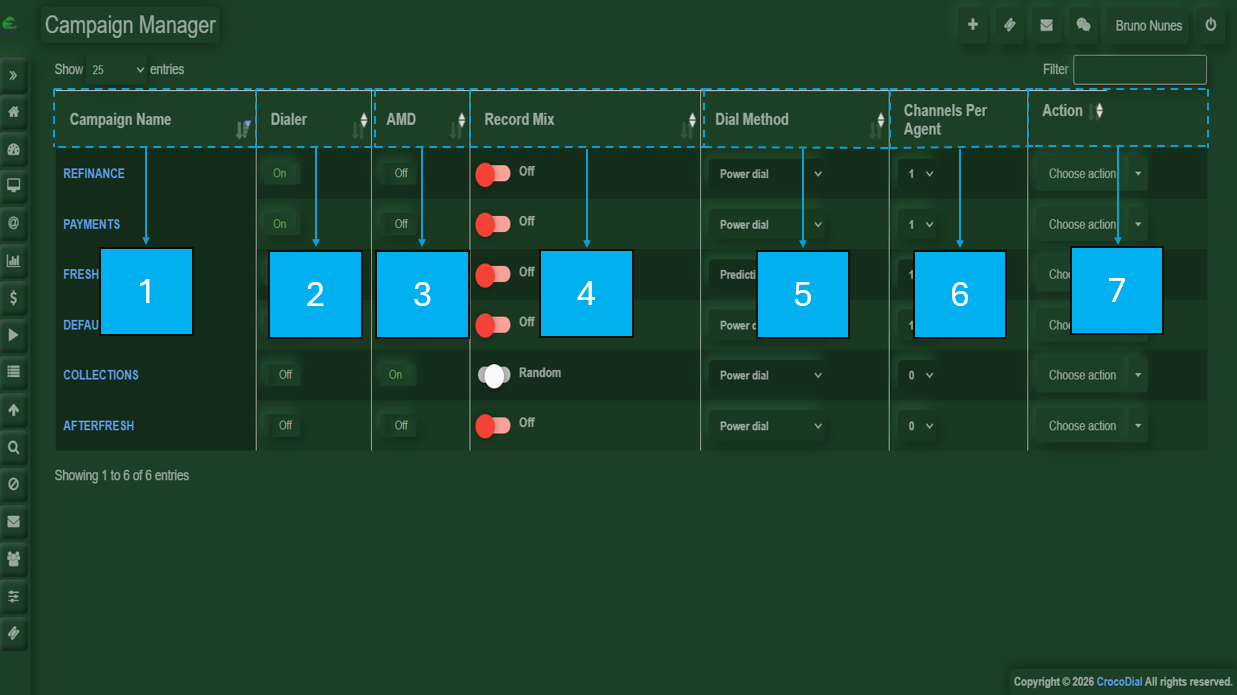
- Campaign Name: The names will appear in blue; when selected, they will redirect you to the campaign settings.
- Change Dialer Method: Allows you to modify the dialing method used for the campaign.
- Turn On Dialer
- Turn Off Dialer
- AMD
- turn On AMD
- trun Off AMD
-
Record Mix: Allows you to manage or enable call recording settings.
-
Turn On Record Mix
- Switch to Random Record Mix
- Switch Even Record Mix
-
-
Dial Method: Defines the dialing strategy used by the system.
- Switch to Power Dial
- Switch to Inbound/Preview
- Switch to Predictive
- Channels per Agent: Defines the number of simultaneous call channels assigned to each agent.
-
Action: Provides available actions to manage or modify the campaign settings, there, you will select the option that has been specified according to the corresponding campaign.

Create campaign
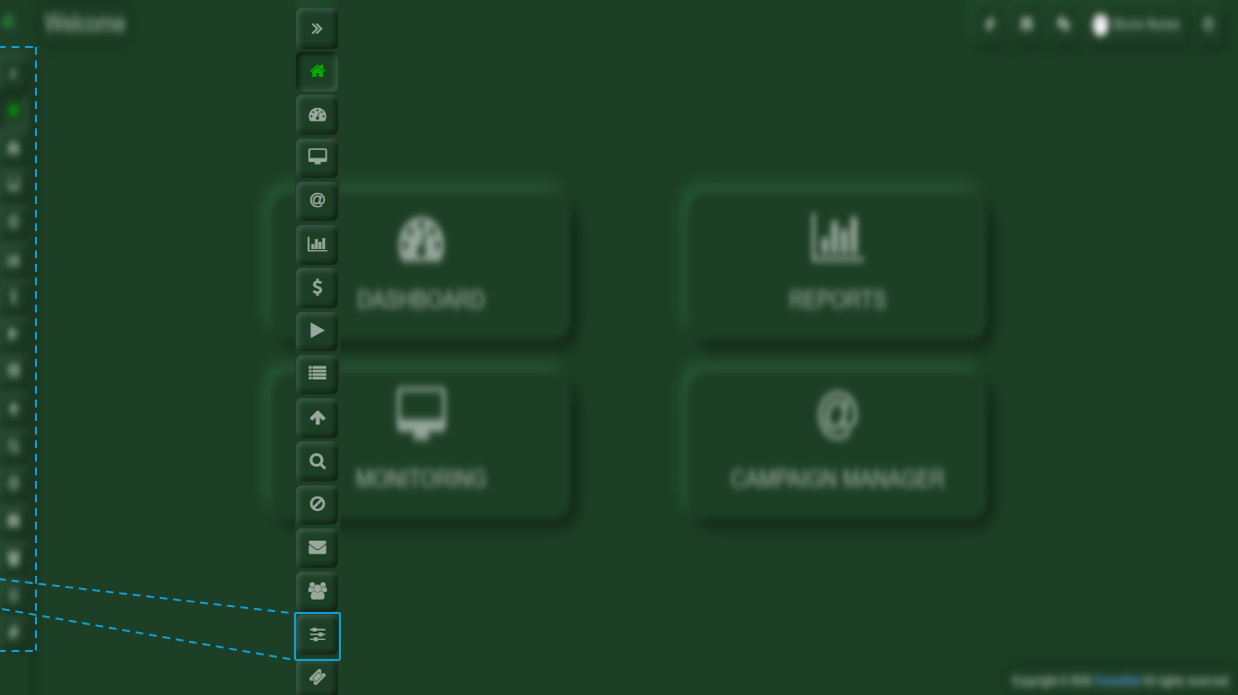
Once you are inside Crocodial, you will see the menu bar on the left-hand side. In this bar, you will find the Manager option. Upon selecting it, a menu with various options will be displayed.
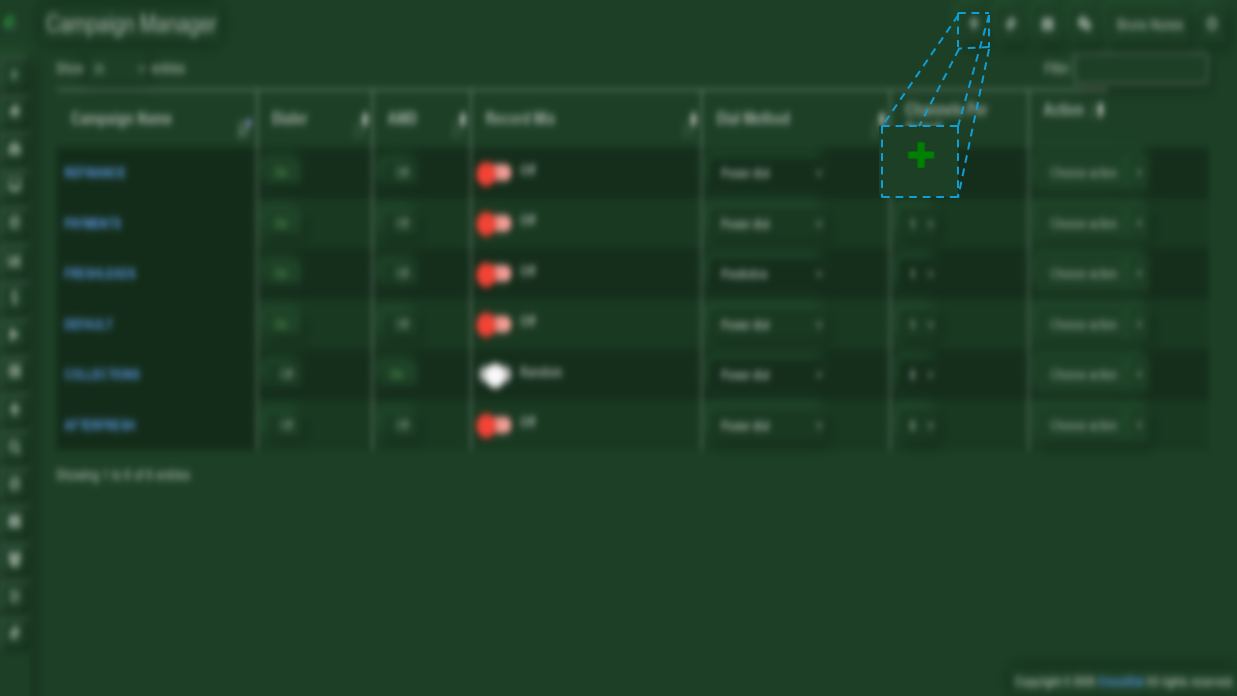
If you wish to add a new campaign, you will need to locate the plus (+) button found in the upper-right corner of the screen.
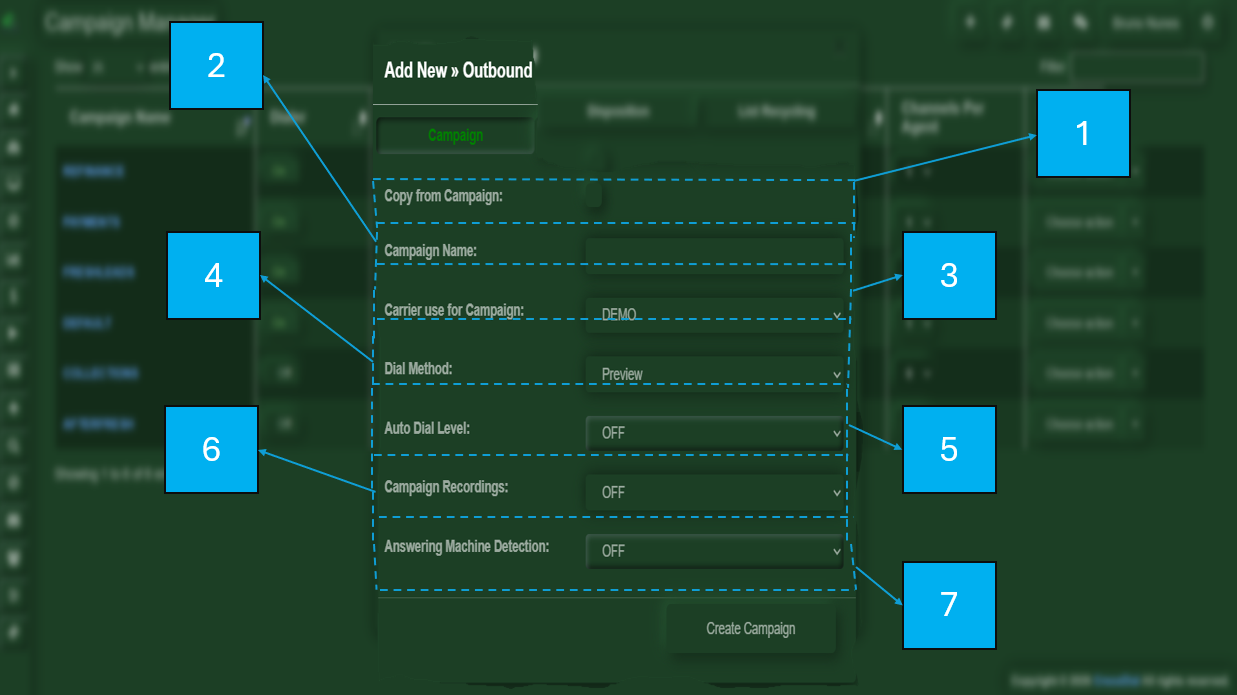
When you click the button, an additional window will open where you can create a new campaign.
-
Copy from Campaign: This option allows you to copy the configuration from an existing campaign. If no campaign is available to copy from, the configuration will need to be set manually.
-
Campaign Name: Enter the name for the campaign to be created.
-
Carrier Used for Campaign: Select the service provider through which the calls will be routed.
-
Dial Method: Select your preferred dialing method (Preview, Predictive, or Crocomode).
-
Auto Dial Level: Specifies the number of simultaneous calls to be placed.
-
Campaign Recording: Select whether you want calls to be recorded.
-
Answering Machine Detection: Determines whether the response on the other end of the line is a voicemail.
Edit Campaign
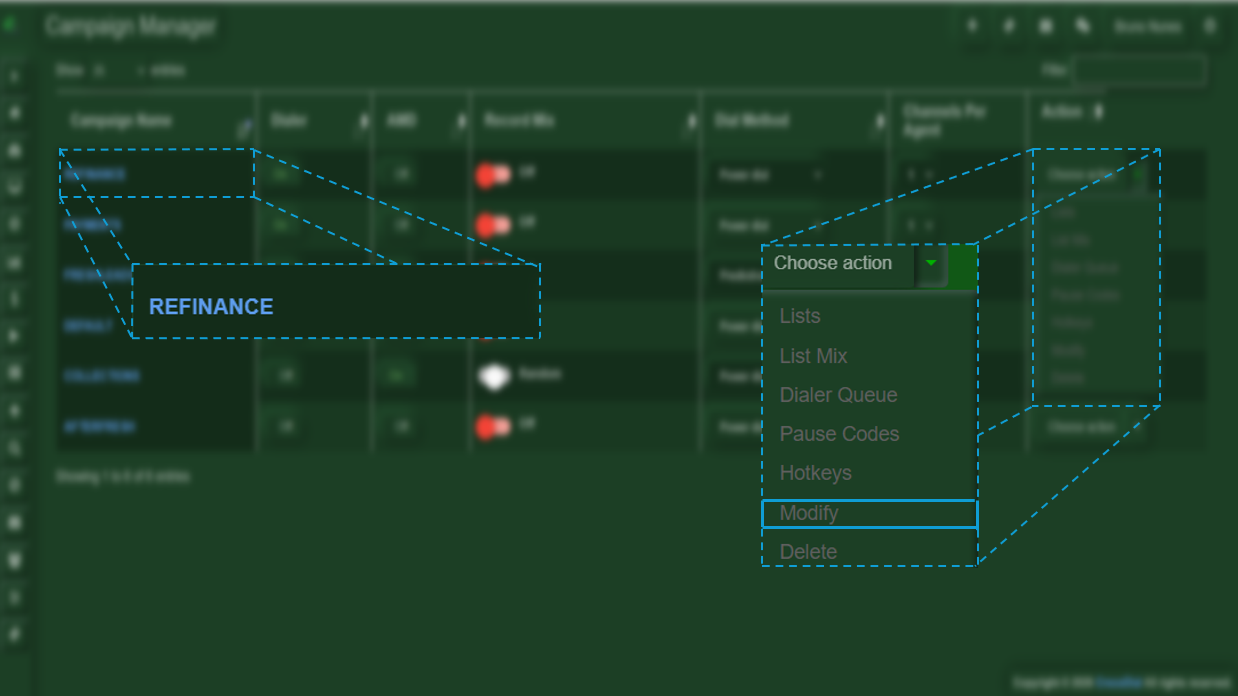
There are two ways to edit a campaign. One is by clicking on the campaign name, which is highlighted in blue. The other is by selecting the Edit option under the Action section.
Delete Campaigns
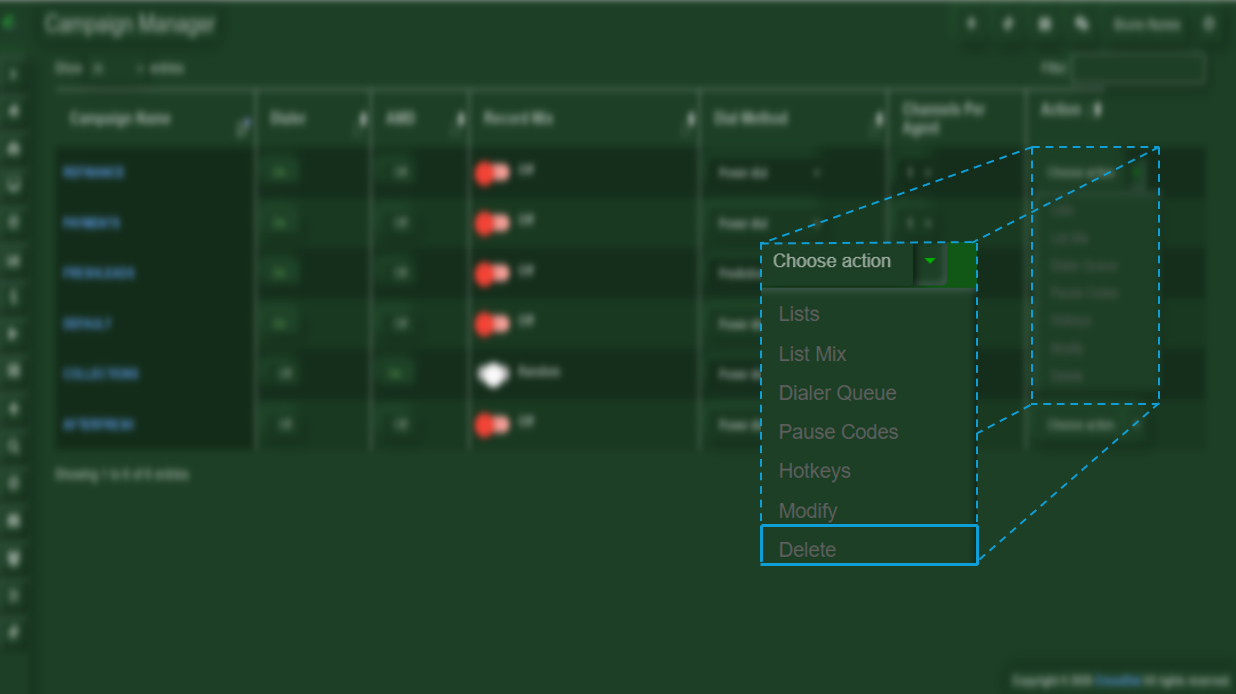
To delete a campaign, you only need to select the Action menu and choose the Delete option.
How to Pause a Campaign
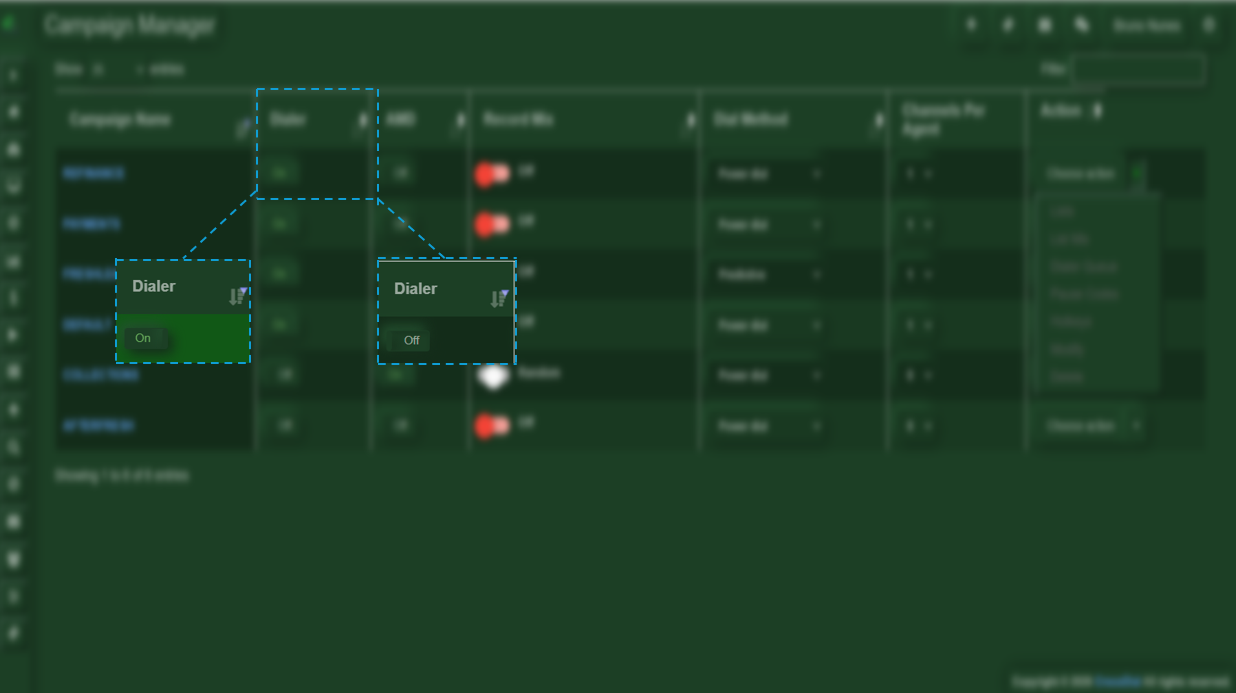
To pause or resume a campaign, it is important to note that On indicates the campaign is active (unpaused), while Off indicates it is paused.
How to turn off a Campaign
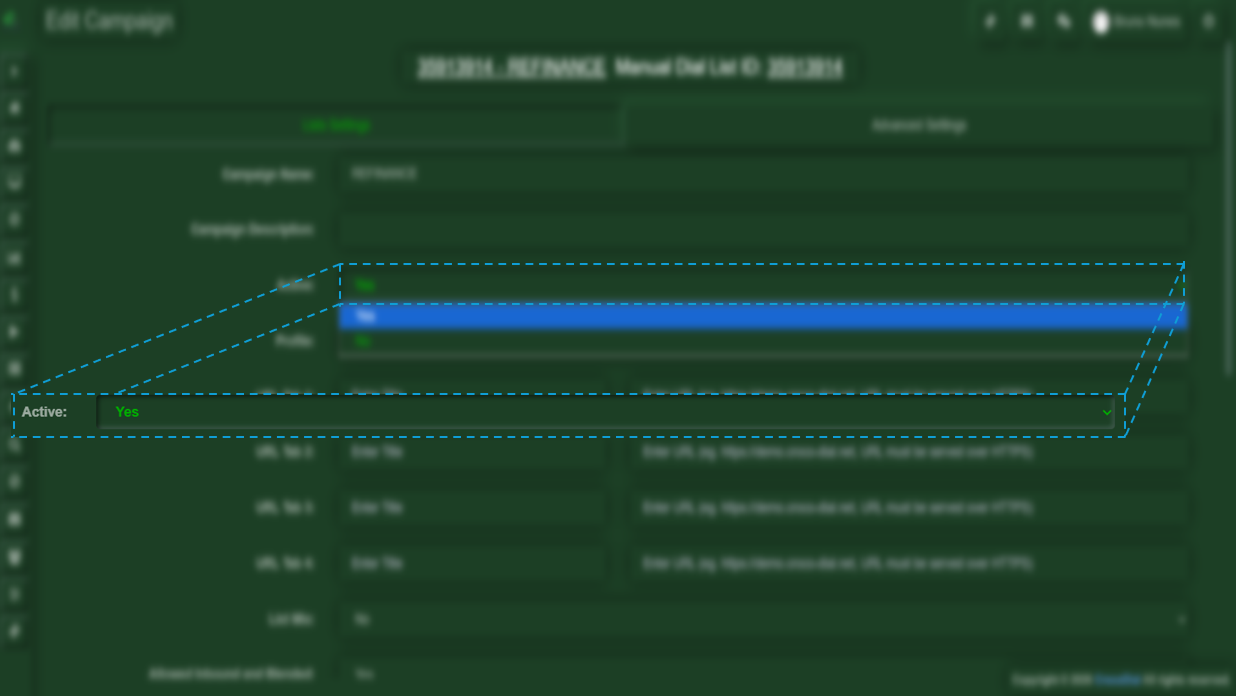
Go to edit the campaign and locate the option called Active, where you will have the choice between On and Off.
Lead Selection Rules
This section explains how leads are selected from the pool and loaded into the lead hopper. Leads are first filtered according to their statuses and then sorted based on the selected criteria.
List Order
- DOWN: selects the first leads loaded into the list table.
- UP: selects the last leads loaded into the list table.
- UP PHONE / DOWN PHONE: sorts leads by phone number, either descending or ascending.
- UP LAST NAME / DOWN LAST NAME: sorts leads alphabetically by last name, starting from Z down or A up.
- UP COUNT / DOWN COUNT: sorts leads based on the number of previous calls, either most called first or least called first.
- DOWN COUNT 2nd/3rd/4th NEW: sorts by least called leads and inserts a NEW lead every 2nd, 3rd, or 4th lead. (NEW status must not be selected in dial statuses.)
- RANDOM: selects leads randomly from the defined statuses and lists.
- UP LAST CALL TIME / DOWN LAST CALL TIME: sorts leads by the newest or oldest local call time.
- UP RANK / DOWN RANK: sorts leads by rank, either highest to lowest or lowest to highest.
- UP OWNER / DOWN OWNER: sorts by lead owner names alphabetically, from Z to A or A to Z.
- UP TIMEZONE / DOWN TIMEZONE: sorts leads by timezone, starting from Eastern to Western or Western to Eastern.
List Order Randomize
This option allows you to randomize the order of leads within the results defined by the List Order criteria. For example, the primary order is maintained, but the results are shuffled within that sorting. Setting this option to Yenables randomization, while the default N keeps it disabled. Note: Large lead lists may slow hopper loading when randomization is enabled.
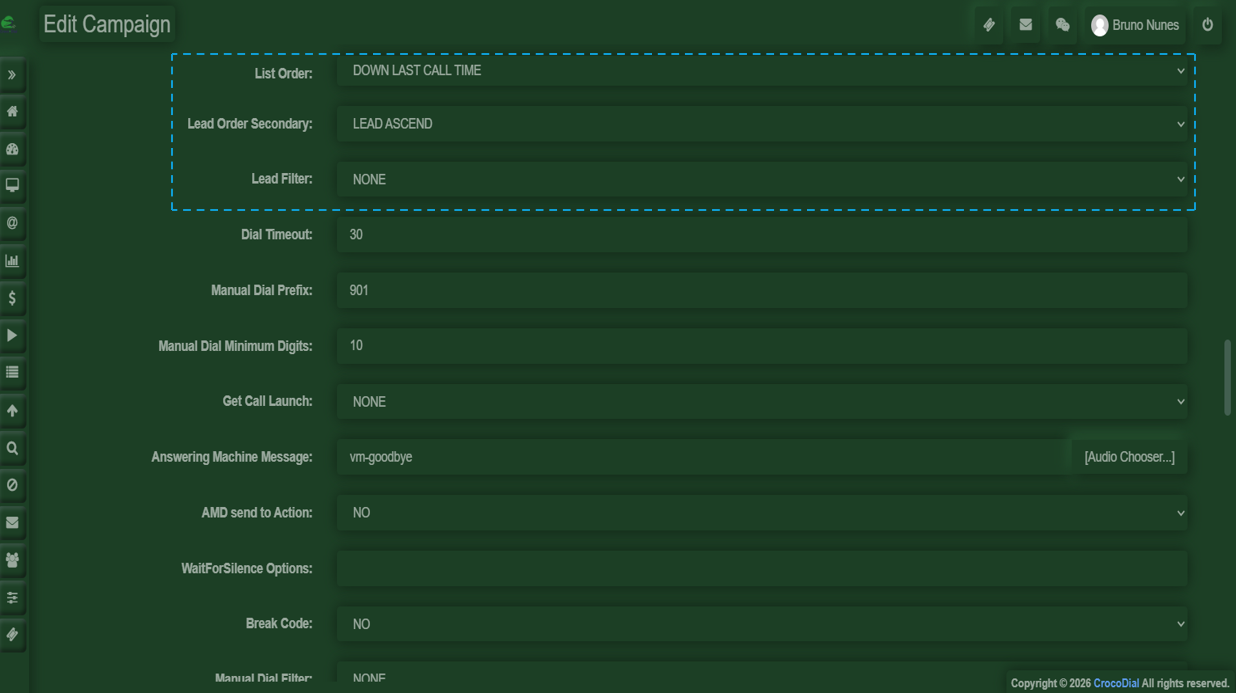
List Order Secondary
The List Order Secondary option provides a secondary sorting mechanism applied after the primary List Order. For instance, if List Order is set to DOWN COUNT, leads with the same call count can be sorted further by oldest first or another secondary criterion. Default is LEAD_ASCEND. Note: If List Order Randomize is enabled, the secondary sort is ignored. Using CALLTIME options with large lead sets may reduce hopper loading speed.
-
Filters (status, region, custom fields)
-
Filters allow you to refine and control which leads are included in a campaign, based on specific criteria.
- Status
Filters leads according to their current state, such as new, contacted, or completed. - Region
Allows you to target leads based on geographic location, helping segment campaigns by area. - Custom Fields
Enables filtering using additional data fields defined within the system, allowing for more precise targeting.
- Status
-
-
Recycling rules (when leads re-enter the queue)
-
Recycling rules define when leads will be reintroduced into the calling queue.
Leads will be dialed again once all the campaign lists have been completed and the configured time interval between calls has been reached.
-
Scheduling and Time Windows
This section defines when the campaign is allowed to run, ensuring that calls are made only within the configured time frames.
- Campaign Start/End Dates
Defines the period during which the campaign will be active. Outside of these dates, no calls will be executed. - Daily Calling Windows
Specifies the hours of the day when calls can be made, helping control operations within allowed time ranges.
How to configure the campaign schedule.
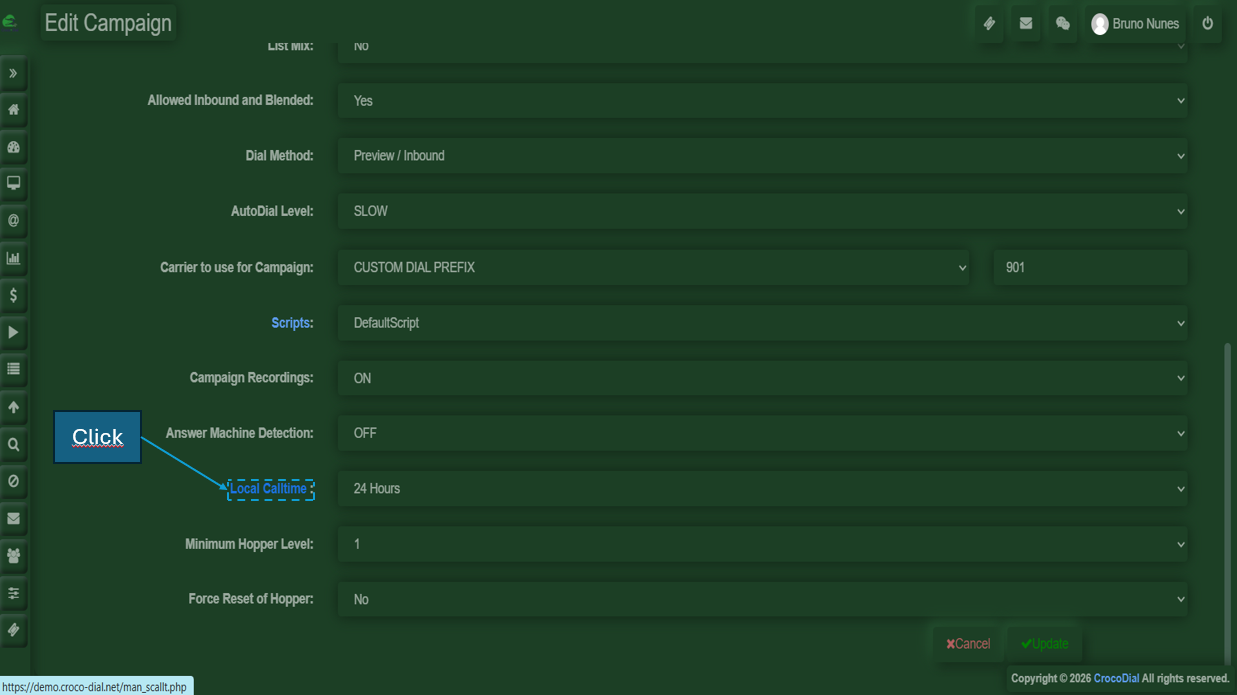
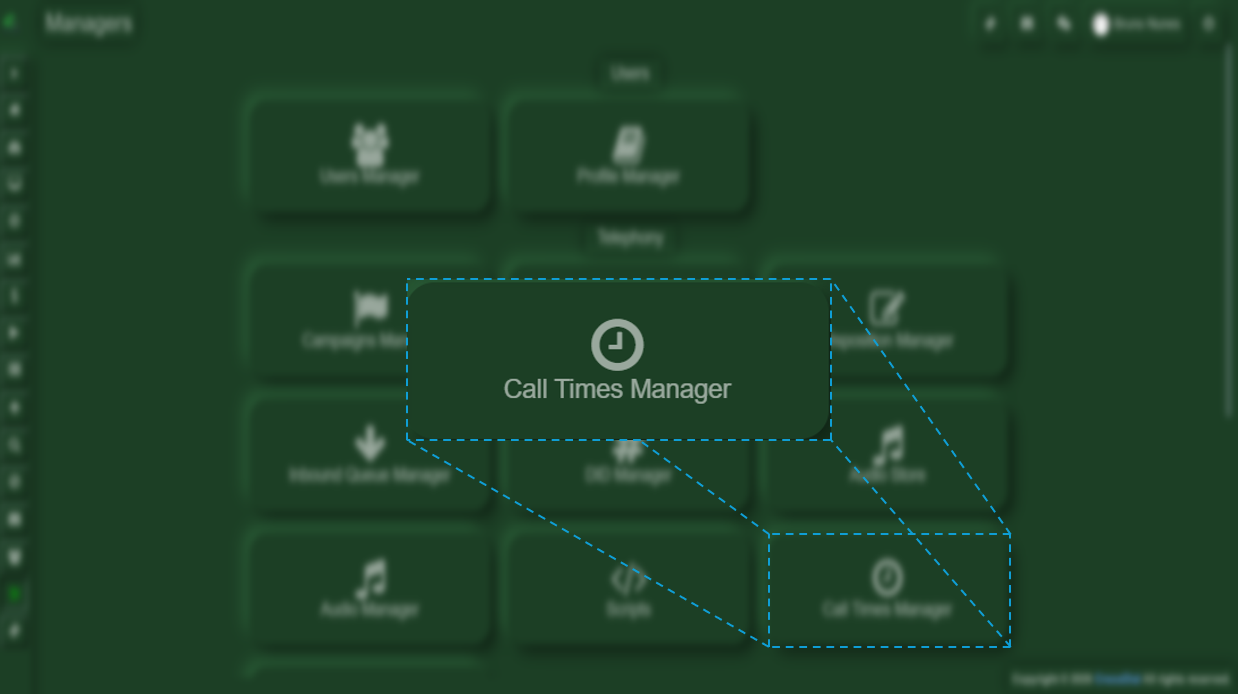
To modify or create a schedule for the campaign, you will need to edit the campaign and click on the blue text under the “Local Calltime” section, or access it through Managers → Telephony → Call Times Manager.
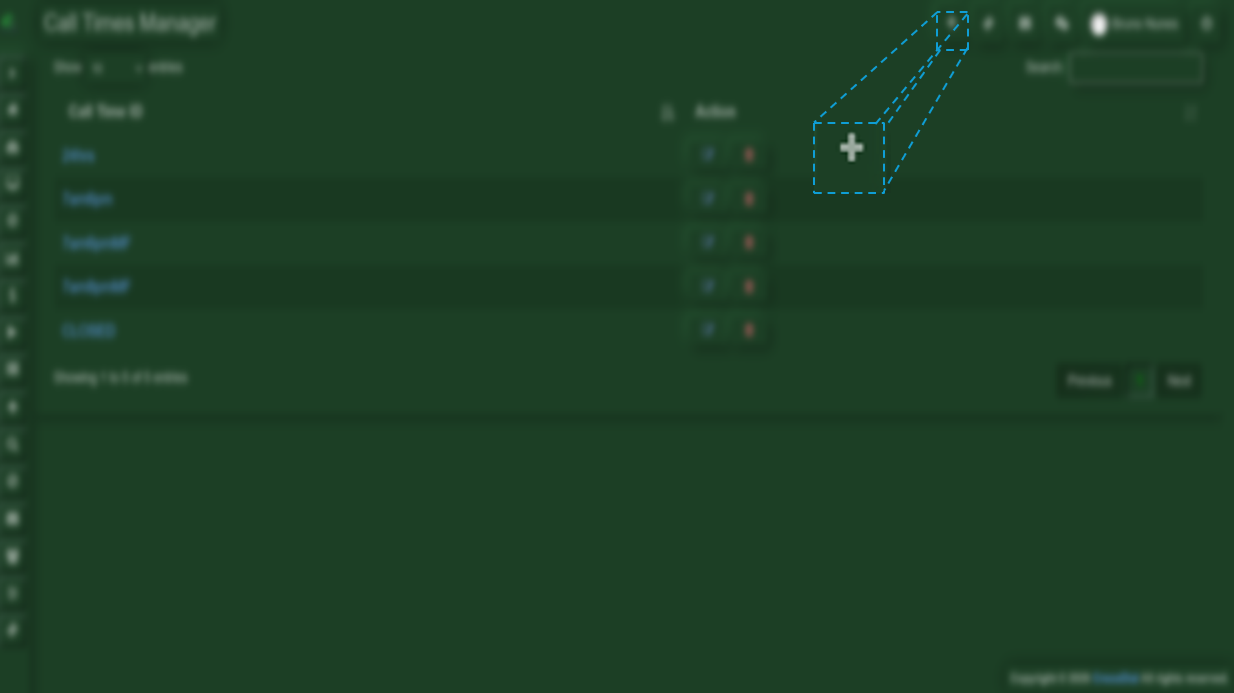
To add another time setting, you only need to click the plus (+) button located in the upper-right corner.
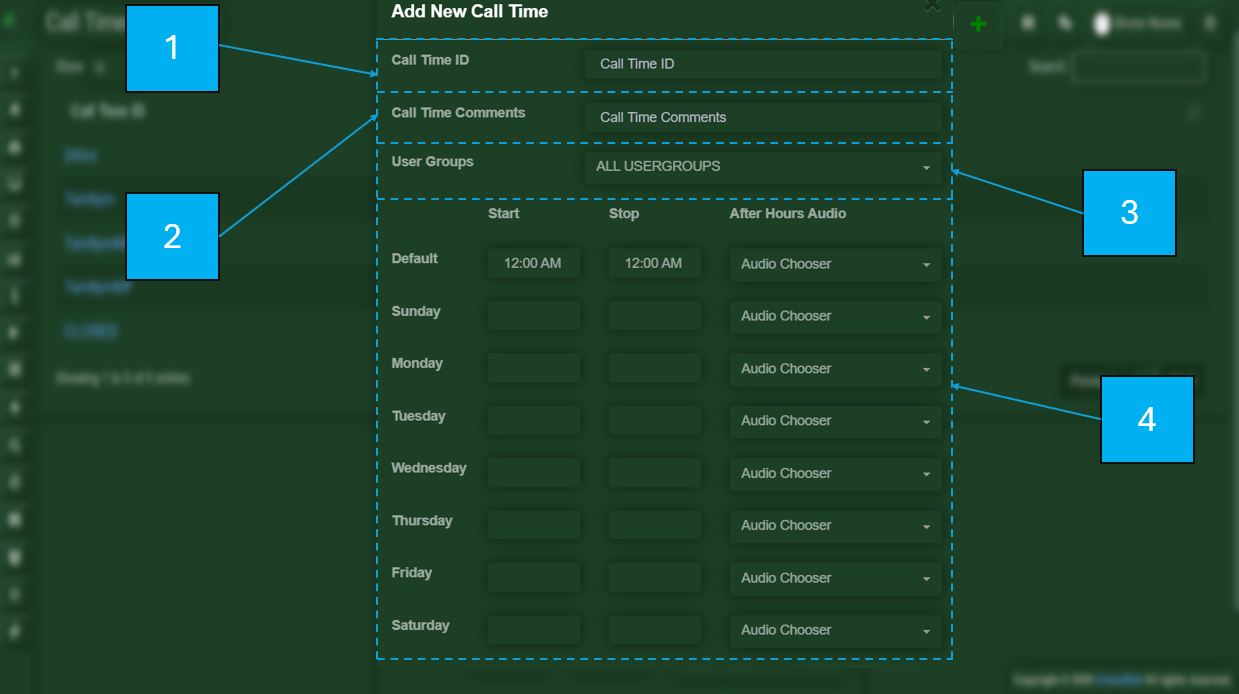
- Call Time ID
- Call Time Comments
- User Groups
- Days to which it will be applied
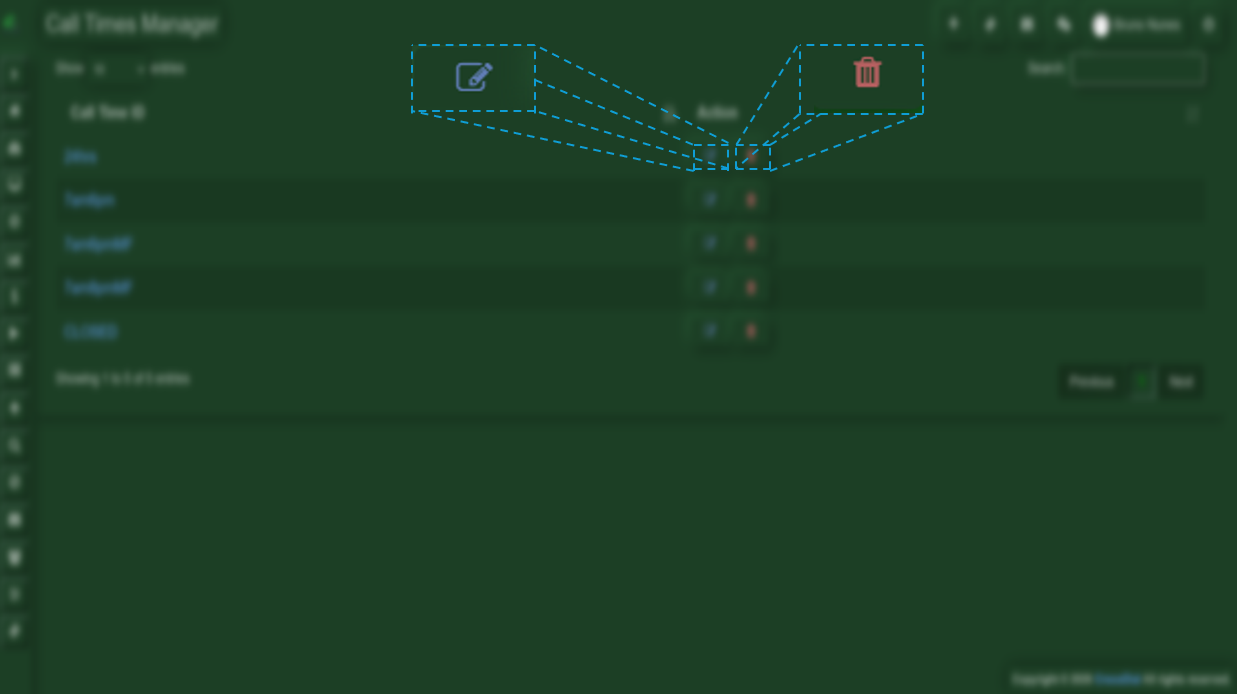
Delete and Edit
Agent Assignment
This section defines how agents are linked to campaigns and how their participation is managed within the system.
- Assigned Agent Groups
Agents are organized into groups that are assigned to specific campaigns, allowing for structured distribution of workload. - Skill-Based Participation
Agents can be assigned to campaigns based on their skills or expertise, ensuring that the right agents handle the appropriate interactions. - Dynamic vs Static Assignment
Dynamic assignment automatically adjusts agent participation based on availability or system conditions, while static assignment keeps agents fixed to a campaign. - Max Concurrent Calls per Agent
Defines the maximum number of simultaneous calls an agent can handle, helping control workload and maintain performance.
Scripts and Agent Interface
This section defines what agents see and interact with during calls, ensuring they have the necessary tools and information to handle each interaction effectively.
- Call Scripts
Provide predefined guidelines or dialogues that help agents communicate consistently and professionally during calls. - Dynamic Forms
Display adaptable forms that change based on the interaction, allowing agents to capture relevant information in real time. - Disposition Options (Call Outcomes)
Allow agents to select the result of each call, such as completed, no answer, or callback, helping track performance and outcomes. - Custom Fields for Data Capture
Enable the collection of additional, campaign-specific information during the call, ensuring all necessary data is recorded.
Call Routing and Handling
This section defines what happens once a call is answered, ensuring that it is properly managed and directed within the system.
- Routing to Agents
Determines how calls are assigned to available agents, ensuring efficient distribution based on availability or predefined rules. - IVR Integration (if applicable)
Allows calls to pass through an Interactive Voice Response system, where callers can select options before being connected to an agent. - Voicemail Handling
Defines how voicemail interactions are managed, including detection, recording, or appropriate follow-up actions. - Call Transfer Rules
Establishes how and when calls can be transferred between agents or departments, ensuring proper handling of customer needs.
Compliance Controls
This section ensures that campaign operations follow legal and regulatory requirements, helping maintain compliance and protect both the company and customers.
- Abandon Rate Limits
Sets the maximum allowed percentage of abandoned calls, ensuring compliance with regulations and minimizing negative customer experience. - DNC Enforcement at Campaign Level
Ensures that contacts listed in Do Not Call (DNC) registries are excluded from the campaign, preventing unauthorized outreach. - Calling Time Restrictions by Region
Defines the allowed calling hours based on regional regulations, ensuring that calls are made only within permitted time frames. - Recording Consent Handling
Manages how consent for call recording is obtained and recorded, ensuring compliance with privacy and data protection laws.
Integrations
This section defines how the campaign interacts with external systems, enabling data synchronization and automated processes.
- CRM Updates
Allows the system to send and update customer information in the CRM, ensuring that all interactions are properly recorded and kept up to date. - Webhooks for Events (Call Start, End, Disposition)
Enables real-time notifications to external systems when specific events occur, such as when a call starts, ends, or receives a disposition. - API Triggers for Campaign Control
Allows external systems to control campaign actions through API requests, such as starting, stopping, or modifying campaign behavior.
Performance and Scalability
This section covers the key factors that ensure the campaign runs efficiently and maintains optimal system performance.
- Concurrent Call Limits
Defines the maximum number of calls that can be handled at the same time, preventing system overload and ensuring stability. - Load Balancing Across Dialers
Distributes call traffic evenly across multiple dialers, optimizing resource usage and avoiding bottlenecks. - Queue Management
Controls how calls and leads are organized in queues, ensuring proper handling order and minimizing wait times. - Resource Allocation (Channels, Trunks)
Determines how system resources such as channels and trunks are assigned, ensuring sufficient capacity for call operations.
Edge Cases
This section outlines common situations that may occur during campaign operation and how they impact system behavior.
- No Available Agents
Occurs when there are no agents available to handle calls. In this case, calls may be queued, delayed, or not initiated depending on the campaign configuration. - Trunk/Channel Exhaustion
Happens when all available communication channels or trunks are in use. This prevents additional calls from being placed until resources become available. - Sudden Campaign Spikes
Refers to unexpected increases in call volume. The system must adjust resource usage and pacing to maintain stability and avoid overload. - Leads Exhausted Mid-Campaign
Occurs when all available leads are contacted before the campaign ends. The campaign may stop, recycle leads, or wait for new data depending on its configuration. - Callback Conflicts
Arises when multiple callbacks are scheduled at the same time, potentially exceeding agent availability and requiring proper queue or priority handling.