Getting Started
- Account Creation
- First Login
- Basic Concepts
- UI Overview
- What are the requirements for the application?
Account Creation
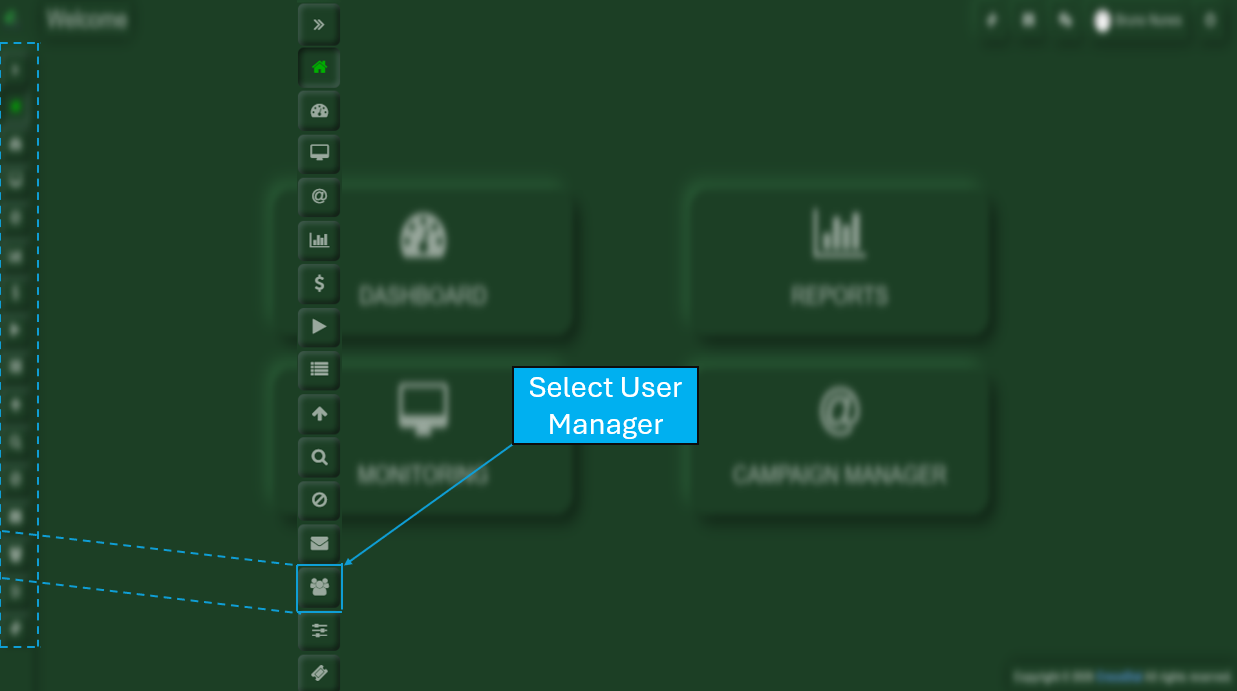
Upon accessing the system using the credentials provided, you will be directed to the main Crocodial dashboard. On the left-hand side, you will find several icons representing the various features available within Crocodial. From these options, you should select User Manager.
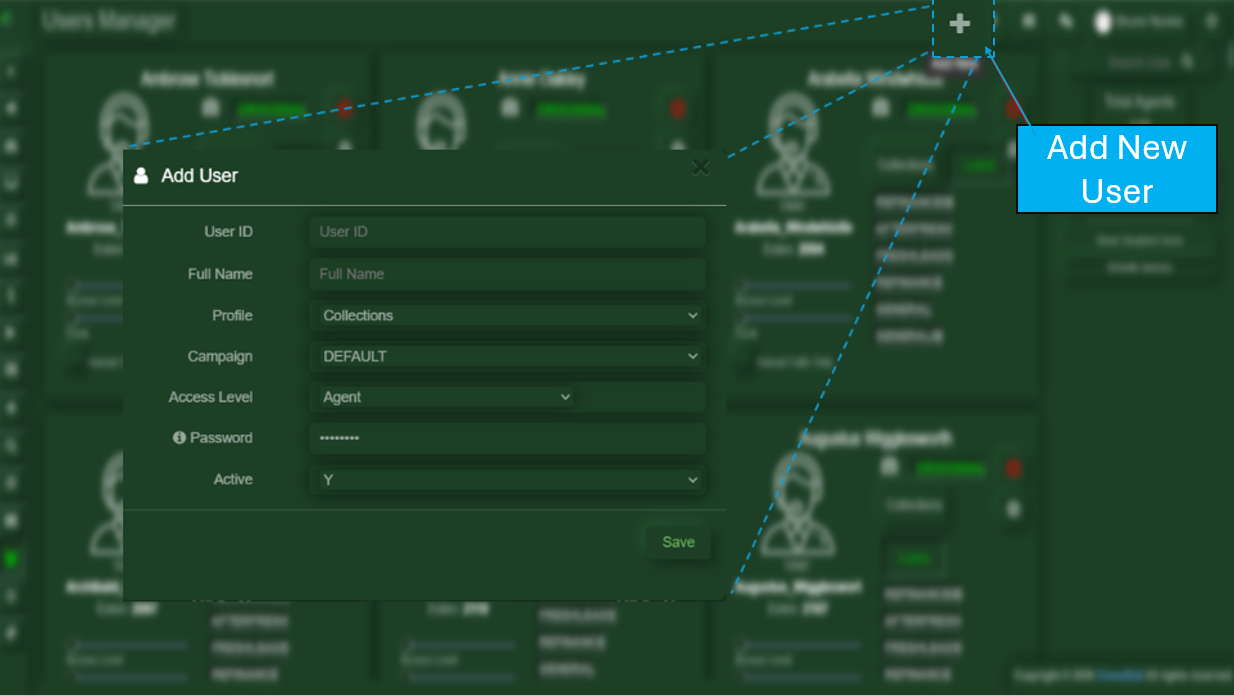
After clicking on the User Manager button, you will see a plus (+) button. Once selected, a new window will open where you will need to complete the following fields:
-
User ID
Enter the corresponding user’s ID. -
Full Name
Enter the user’s full name. -
Profile
Assign the profile that was previously designated for the user. -
Campaign
Assign the campaign that was previously designated for the user. -
Access Level
Assign the access level that has been designated for the user. -
Password
Enter a secure password for the user. -
Active
Indicate whether the user account should be active (Yes/No).
First Login
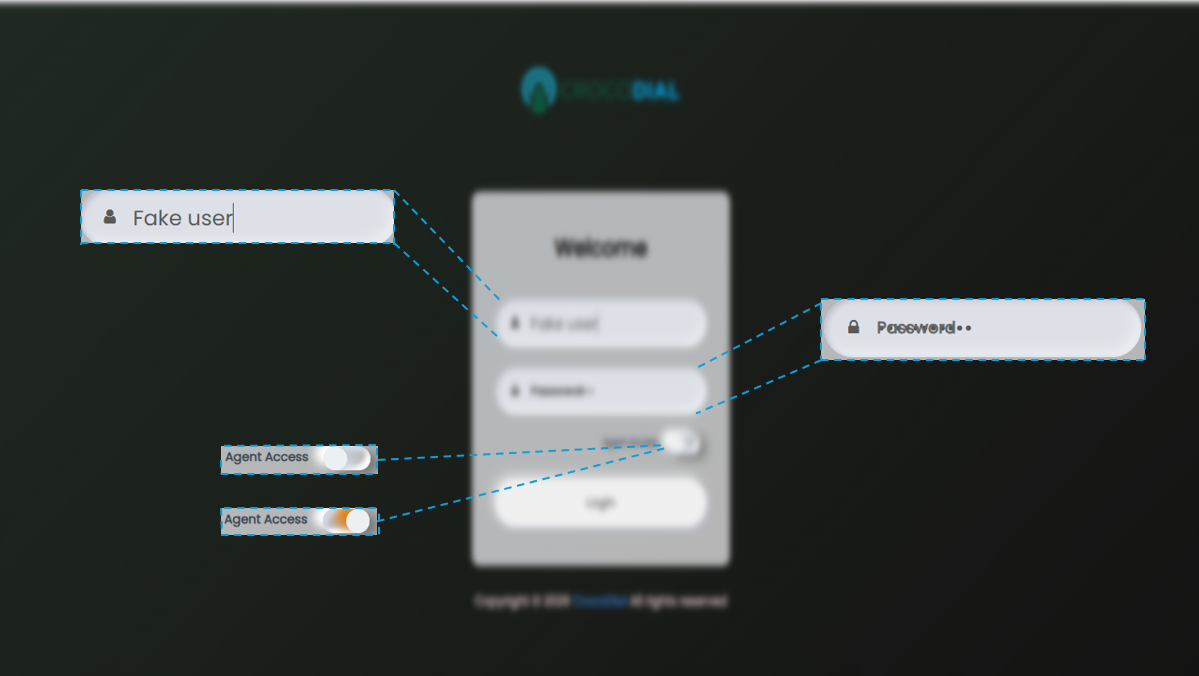
To register for the first time, you will need to log in using the username and password provided by the support team, You will also have the option to log in as an agent, supervisor, or administrator, depending on the role that has been assigned to you.
Basic Concepts
This section defines the core operational entities within Crocodial. Understanding these concepts is essential for configuring campaigns, managing operations, and interpreting system behavior.
An Agent is an end user responsible for handling outbound interactions with leads. Agents operate through the dialing interface and are the primary execution layer of campaigns.
Key attributes:
-
Assigned to one or multiple campaigns
-
Operates in specific states (Ready, Busy, Offline)
-
Handles calls and records outcomes (dispositions)
-
Performance measured via KPIs (talk time, conversion rate, etc.)

A Campaign is a logical structure that organizes and controls outbound operations. It defines how, when, and to whom calls are made.
Key components:
-
Assigned agents
-
Associated lists (leads)
-
Dialing mode and rules
-
Schedule and time windows
-
Performance tracking

A Lead is an individual contact record that is targeted within a campaign. It contains the necessary information to
initiate communication.
Typical fields:
-
Phone number (mandatory)
-
Name
-
Custom attributes (e.g., account number, status, balance)
-
Interaction history
-
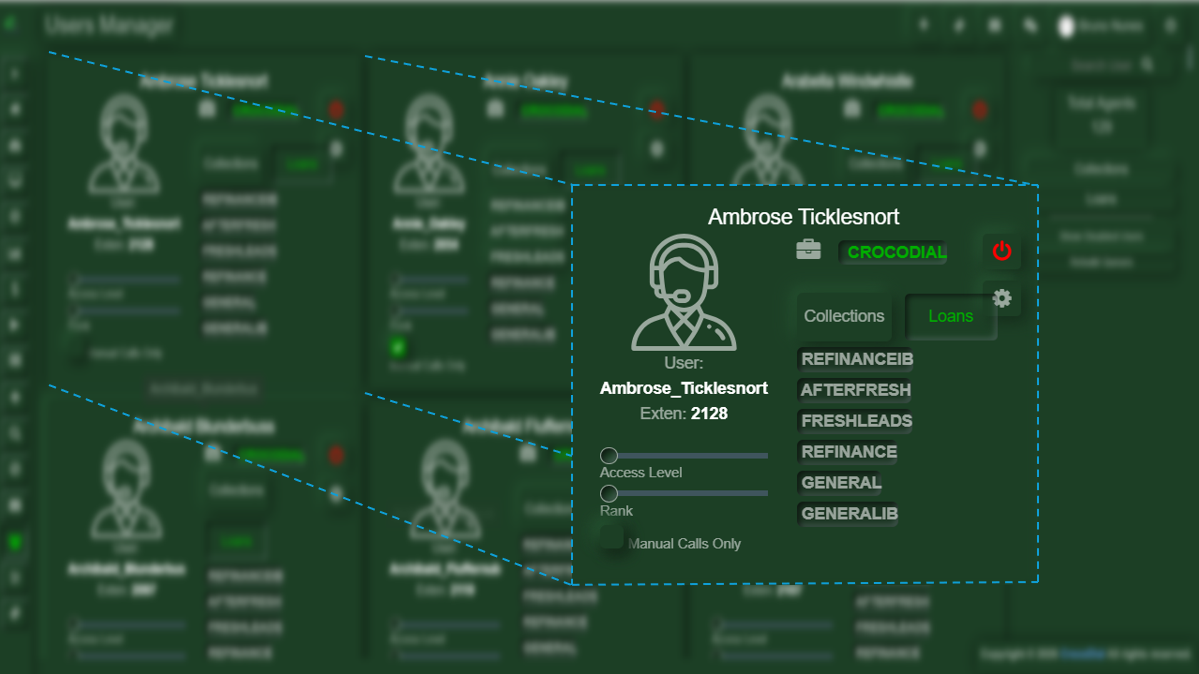
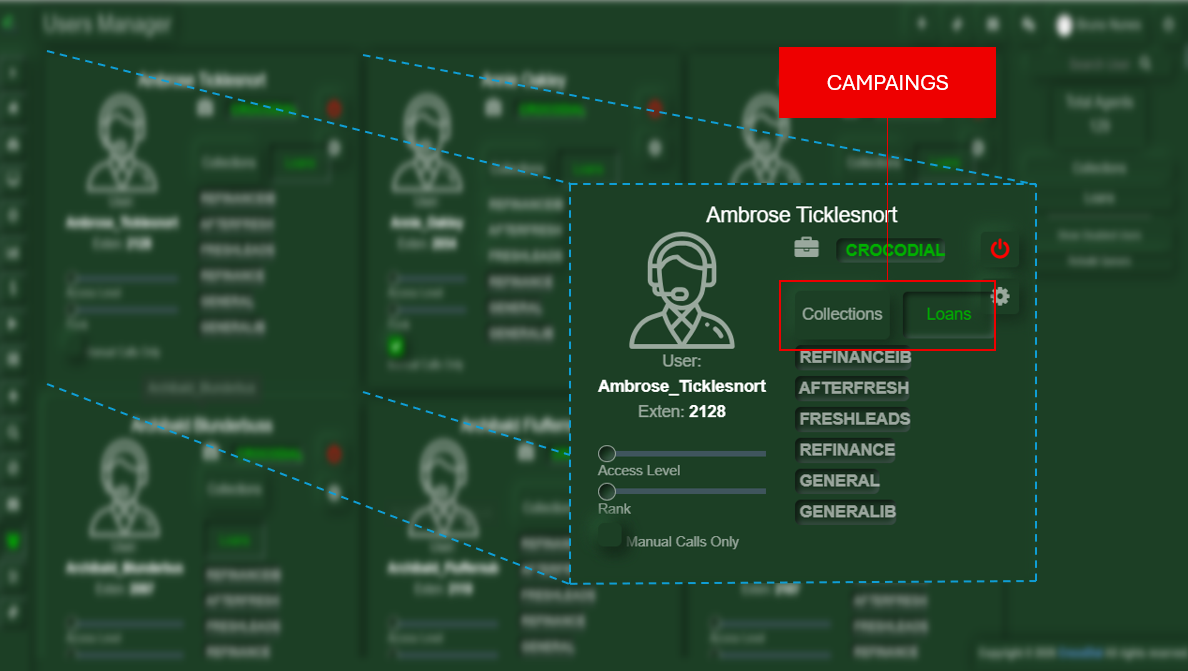
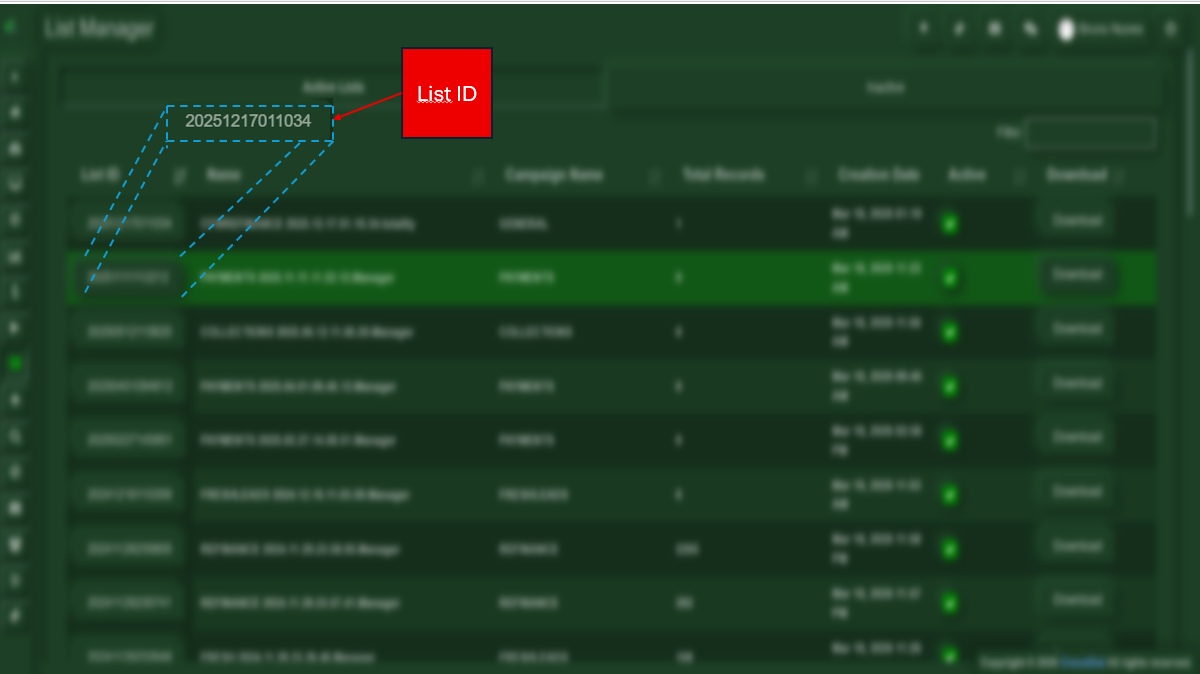
Leads are loaded into lists that are identified by a unique ID. It is important to note that calls will be received automatically, with a notification, as long as the user is in Available status. Since each list is associated with its corresponding ID, it will be linked to the campaign that has been assigned to the user.

-
UI Overview
Supervisor UI
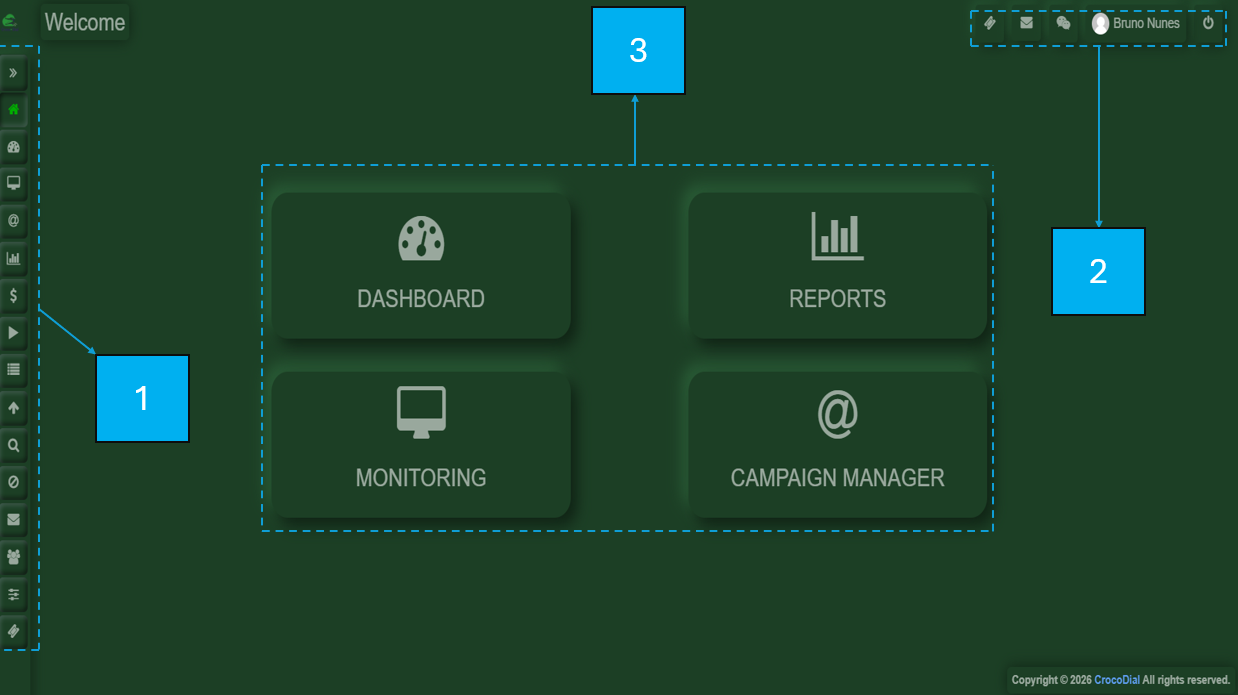
The supervisor view is divided in the following areas:
1-On the left-hand side, there is a menu bar.
2-On the upper-right side, you will find a compact options panel for your profile, logout, tickets, voiceline, and chat.
3-In the central section, the selected menu option will be displayed.
AGENT
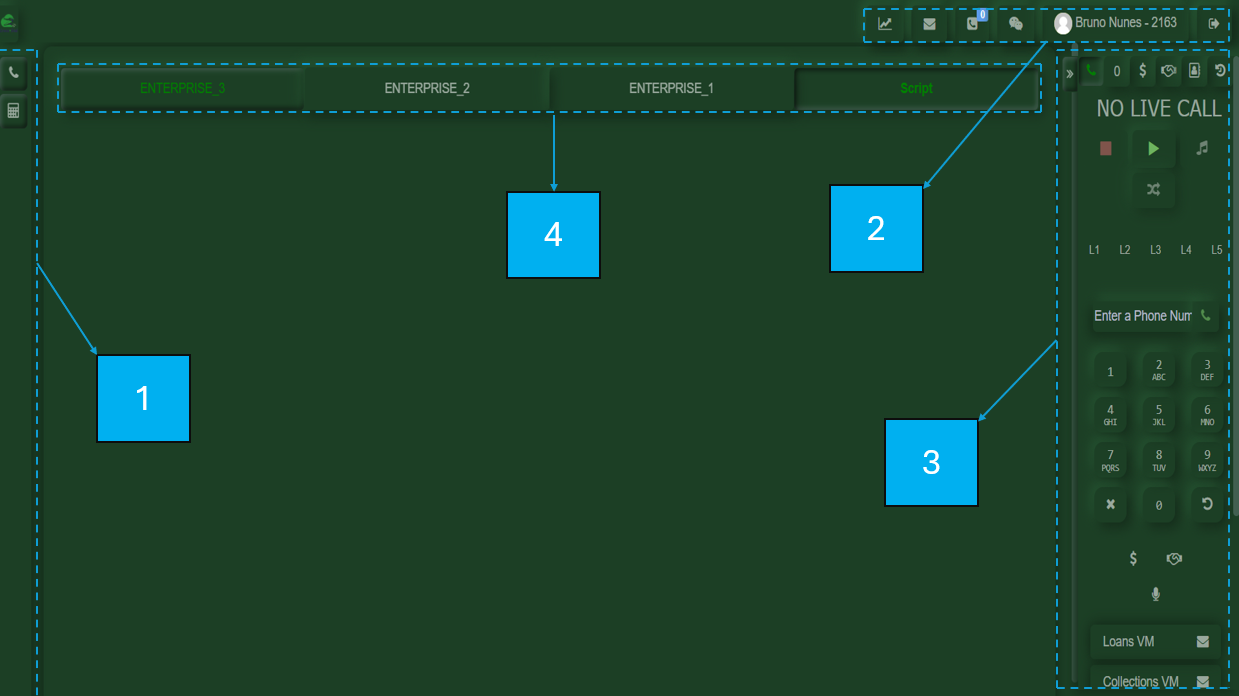
1-On the lower-left side, you will find quick access shortcuts to a calculator and a button to return to the call controls.
2-On the upper-right side, you will find your customized user panel, where you can access your assigned daily metrics, including New Voiceline, Callbacks, your profile, and the logout option.
3-On the lower-right side, you will find your calling tool, which contains all the options required to make and receive calls.
4-In the central section, you will find the interchangeable CRM interface.
What are the requirements for the application?
Connectivity Requirements
To ensure operational stability within the Call Center environment, users must have a stable internet connection with low network variation.
General Recommendations
- Use a wired Ethernet connection whenever possible.
- Avoid using Wi-Fi, especially during critical or high-demand operations.
- Maintain the network free from congestion during working hours.
- Avoid downloads, streaming, or high bandwidth consumption while handling calls.
Network Quality Parameters
The connection should meet the following performance indicators to ensure proper voice communication and platform stability.
| Parameter | Ideal Value | Acceptable Value | Description |
|---|---|---|---|
| Latency | < 80 ms | < 150 ms | Time required for communication data to be sent and received. |
| Jitter | < 20 ms | < 30 ms | Variation in packet arrival times. |
| Packet Loss | < 1% | Minimal | Data packets lost during transmission. |
| MOS (Mean Opinion Score) | 4 or higher | 3.5+ | Indicator of perceived voice call quality. |
| Resource | Minimum Requirement |
|---|---|
| RAM | 8 GB |
| Upload Internet Speed | 5 Mbps |
| Download Internet Speed | 5 Mbps |
Recommended Validations
Before starting operations, it is recommended to verify:
- Internet connection stability
- Upload and download speeds
- Network latency
- Network jitter
- Packet loss
- Voice quality through VoIP testing
Best Practices
Browser and WebRTC Compatibility
Supported Browsers
Call Center platforms based on WebRTC require updated and compatible browsers.
Recommended Browsers
- Google Chrome
- Microsoft Edge
Non-Recommended Browsers
Avoid using:
- Outdated browsers
- Browsers without WebRTC support
- Obsolete or unmanaged browser versions
- Browsers with extensions that interfere with audio or permissions
Required Validations
Before logging into the platform, verify the following:
| Validation | Description |
|---|---|
| Microphone Permissions | Confirm that access to the audio device is allowed |
| WebRTC Enabled | Validate proper real-time communication functionality |
| Hardware Acceleration | Enable hardware acceleration to improve performance |
| Updated Browser | Keep the latest stable version installed |
| Audio Compatibility | Verify proper detection of input and output devices |
Best Practices
- Keep only necessary browser extensions enabled.
- Avoid multiple tabs with multimedia content open simultaneously.
- Restart the browser before beginning the workday.
- Clear browser cache periodically to avoid session conflicts.
- Do not use modified browsers or beta versions in production environments.
You can also check your internet speed using the following link https://h3.speed.cloudflare.com/