
How to create the DIDs registry
In this case, you will need to follow a series of steps designed to create the DID extensions.
As the first step, once you are inside the IssabelPBX webpage, locate the options menu situated on the top navigation bar of the page.
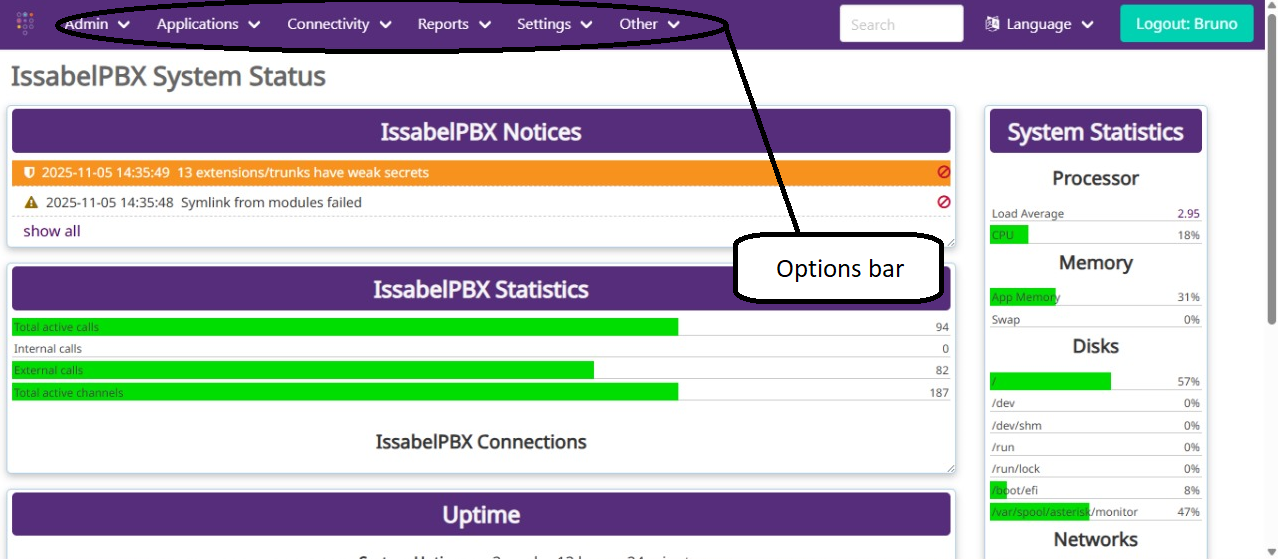
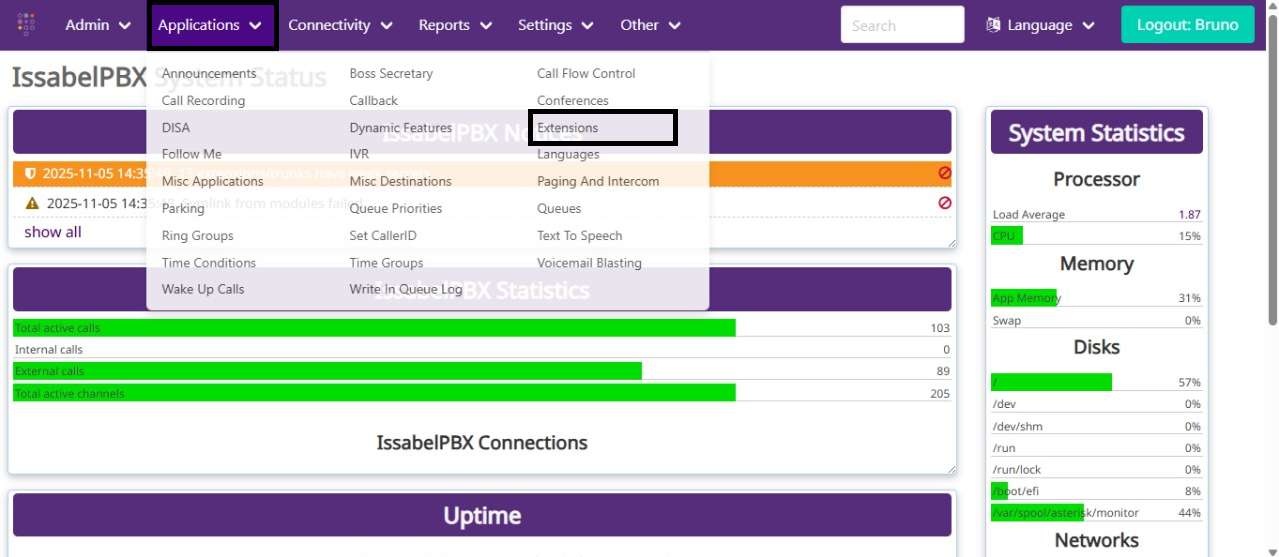
You will need to open the “Applications” option, which will display a multi-option menu. From this menu, select the “Extensions” option.
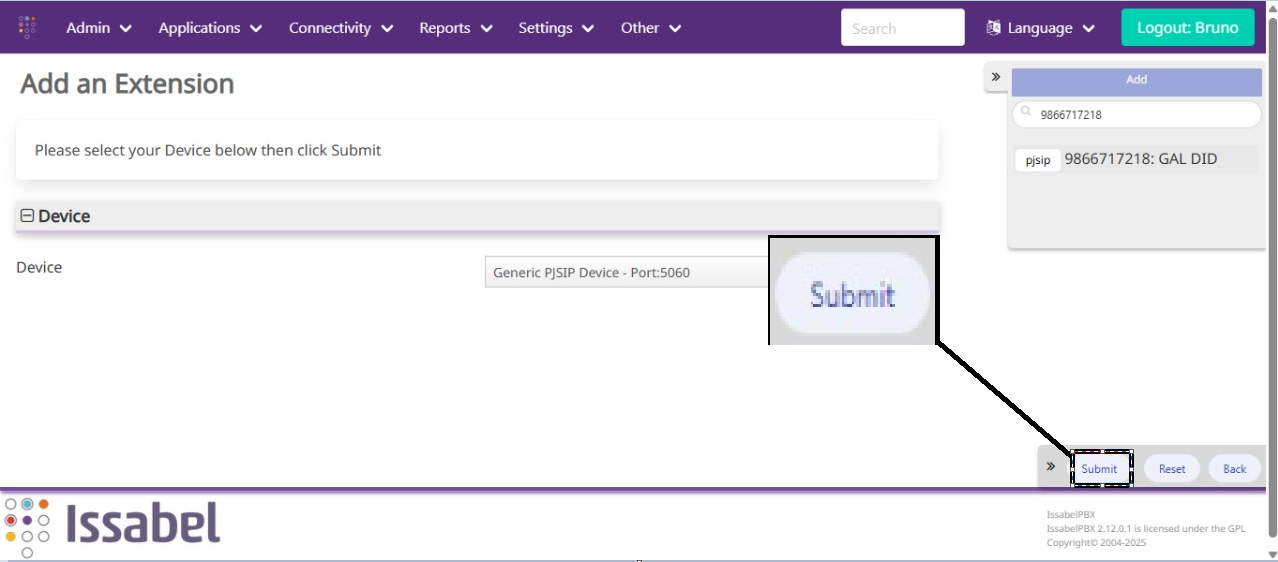
Once you are inside the “Extensions” section, you will need to click the “Submit” button to begin the first step in the extension setup process.
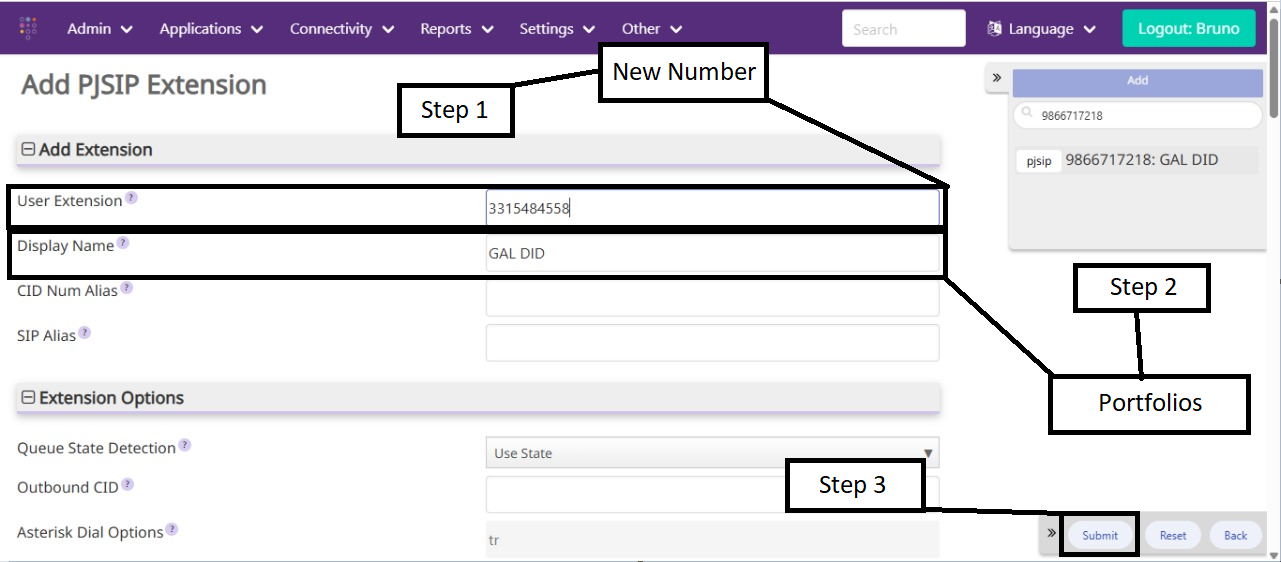
Once inside, you will need to fill in the “User Extension” and “Display Name” fields with the information that has been assigned to you. In the “User Extension” field, enter the new number, and in the “Display Name” field, enter the corresponding portfolio. To complete this step, click “Submit” to temporarily save this part of the process. However, please note that pressing “Submit” does not permanently save the changes. Proceed with caution, as I will explain how to fully save the configuration in later steps—this action only secures the changes for the ongoing setup process.
Despues de presionar sumit la pagina te regresara al principio y esta vez seleccionaras la opcion de Connectivity y se te abrira otra barra de opciones donde seleccionaras Inbound Routes
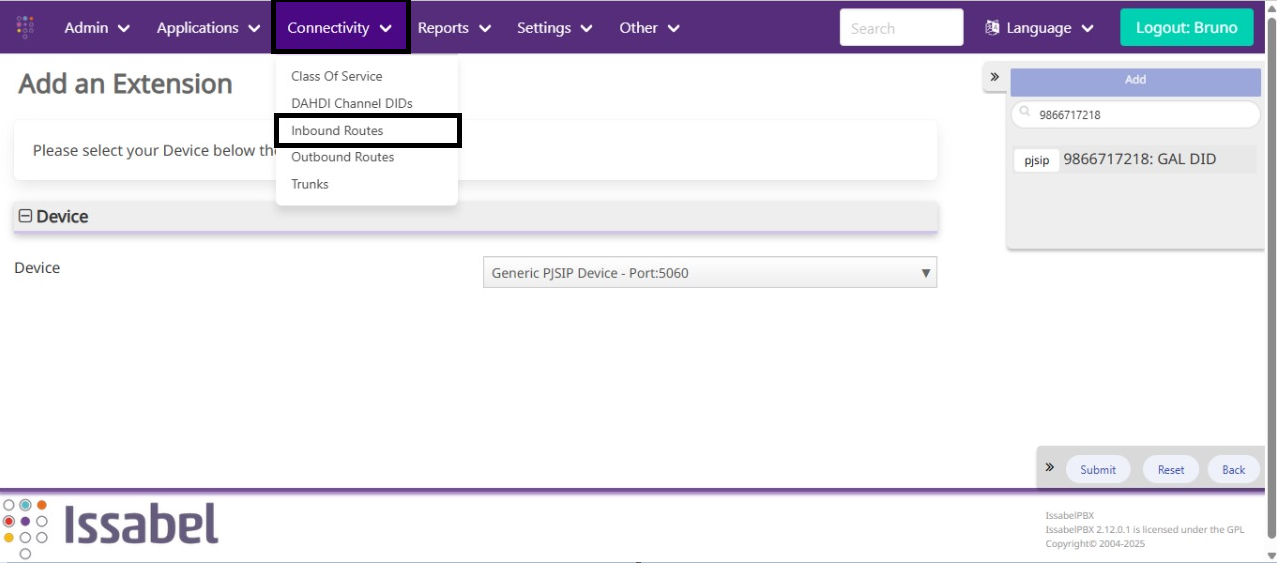
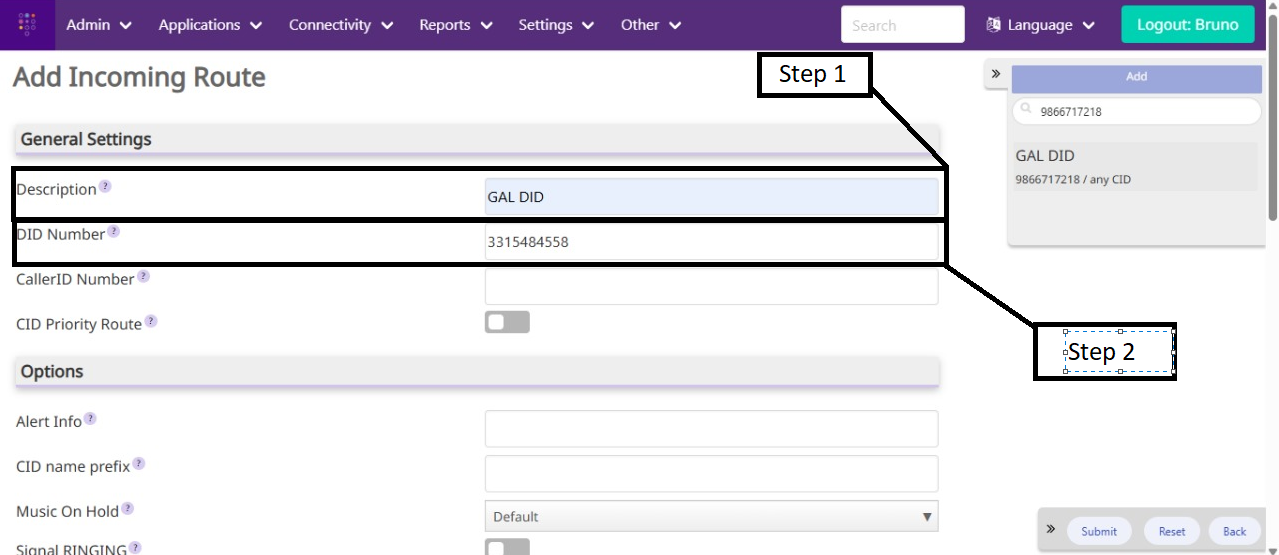
When you access the Inbound Routes section, you will need to complete four fields — the first two are located under General Settings, and the last two under Set Destination.
The first two fields to fill out are:
-
Description: Enter the portfolio corresponding to the number.
-
DID Number: Enter the new number you are currently working on.
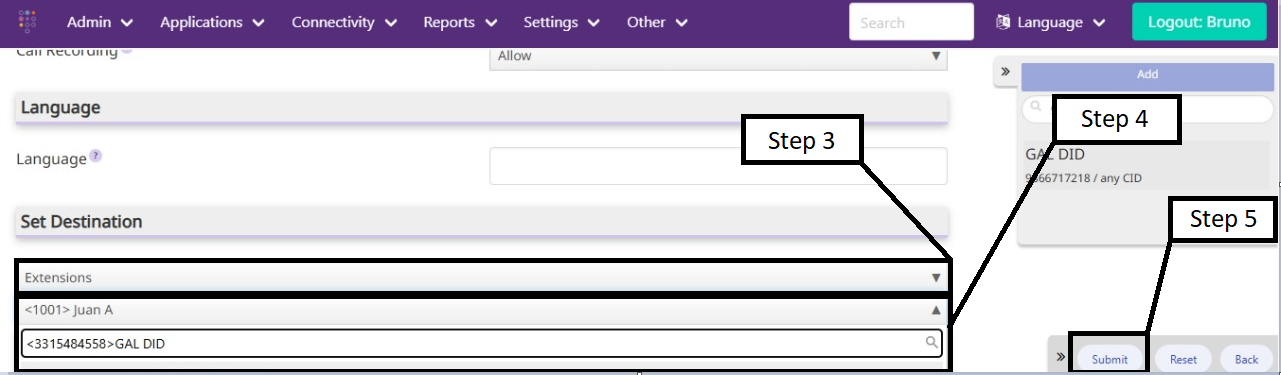
Next, scroll down to the bottom of the page to find the Set Destination subsection. There, you will need to fill in two additional options:
-
In the first option, select “Extensions.”
-
In the second field, enter the same number used in the previous steps (it is not necessary to include any special characters—typing only the number will display the corresponding option).
Finally, click “Submit” to save the changes made.
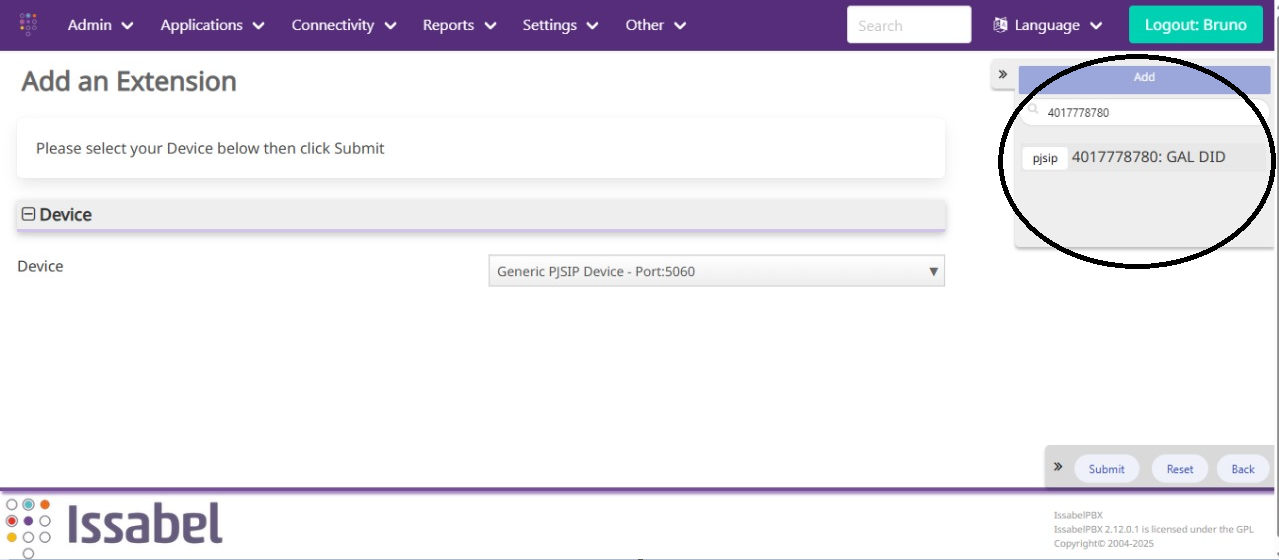
Once the number has been registered, return to the main page. Then, click on “Applications” again and select “Extensions.” You will notice that, in the upper-right corner of the page (just below the “Logout” button), there is a search field. In that field, enter the number you are currently working with. When the corresponding number appears below, select it to continue.
After selecting the number, several tables will appear. Locate the one labeled “Device Options.” Within this table, you will find a field called “Secret.” The content of this field will appear blurred until you hover your cursor over it.
Using the information you have obtained, you will now need to create the registration string. Follow these steps carefully:
-
Insert the number you are registering at both the beginning and end of the string:
3315484558----------------3315484558 -
Add the password you retrieved from the “Secret” field in the middle:
3315484558:381af6662eef9a2db11f4cd8003809fc------3315484558 -
Include the server address as follows:
3315484558:381af6662eef9a2db11f4cd8003809fc@sip-gw.croco-dial.net/3315484558
Finally, to simplify the registration process in the future, add the prefix “register =>” before the entire string:register => 3315484558:381af6662eef9a2db11f4cd8003809fc@sip-gw.croco-dial.net/3315484558

No Comments