Create campaign
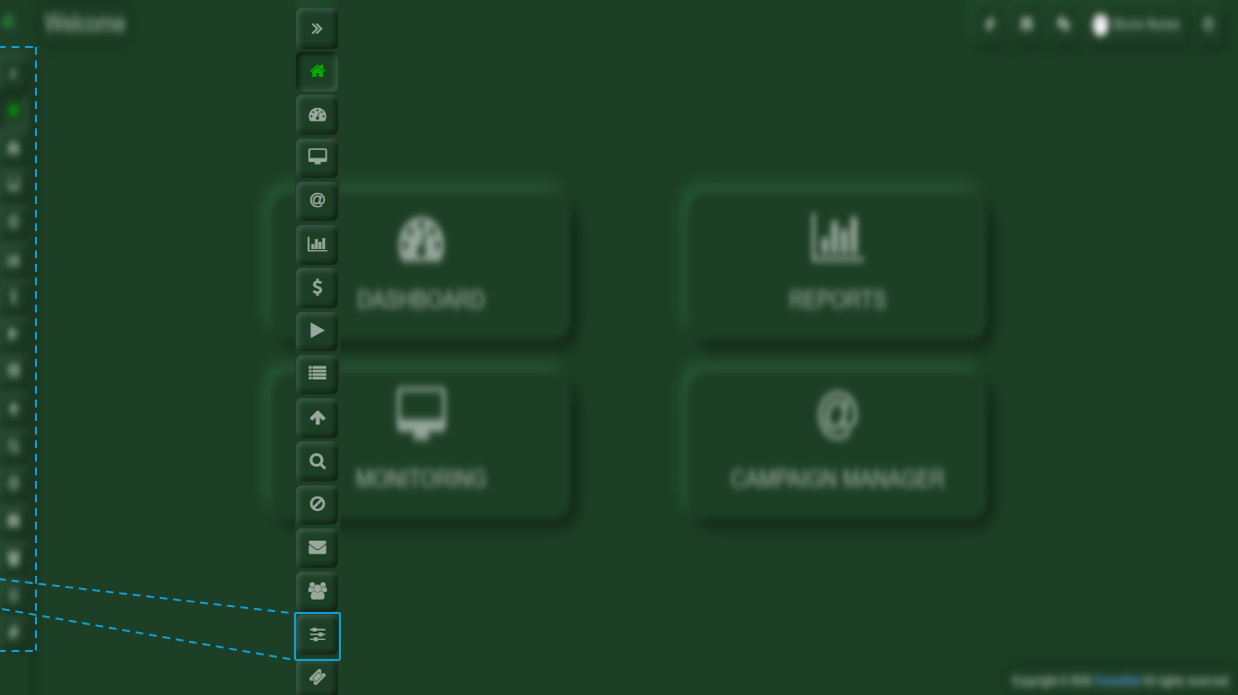
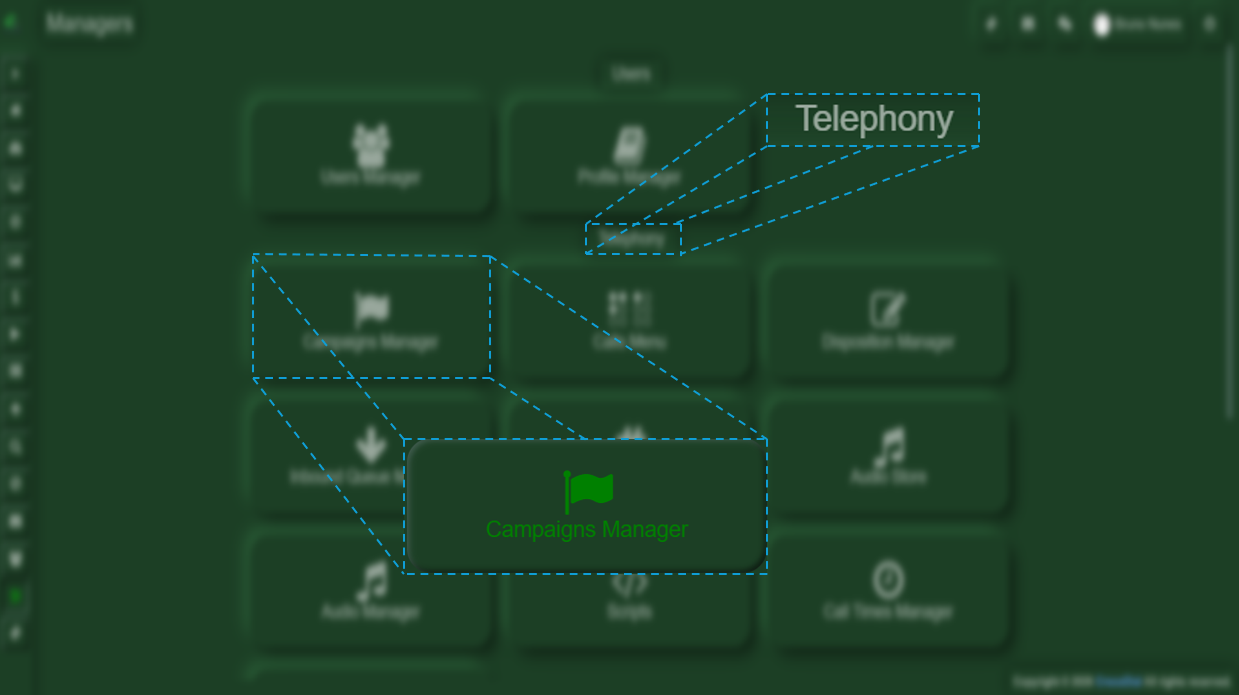
Once you are inside Crocodial, you will see the menu bar on the left-hand side. In this bar, you will find the Manager option. Upon selecting it, a menu with various options will be displayed.
If you wish to add a new campaign, you will need to locate the plus (+) button found in the upper-right corner of the screen.
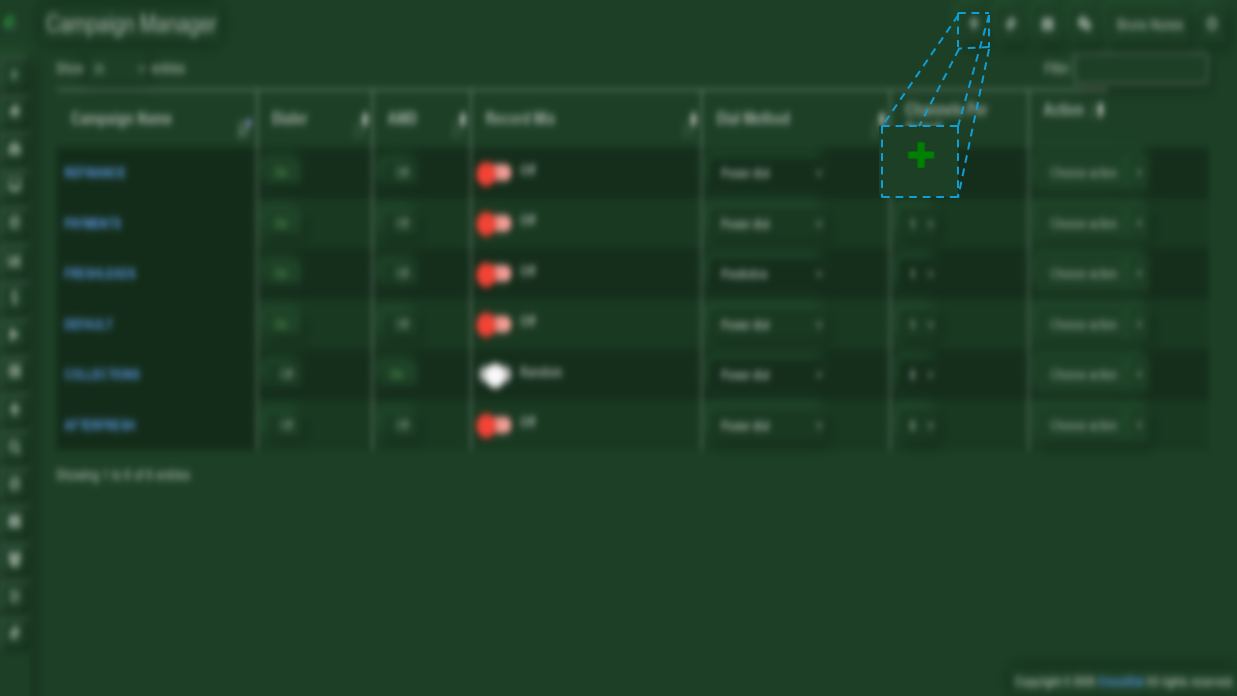
When you click the button, an additional window will open where you can create a new campaign.
-
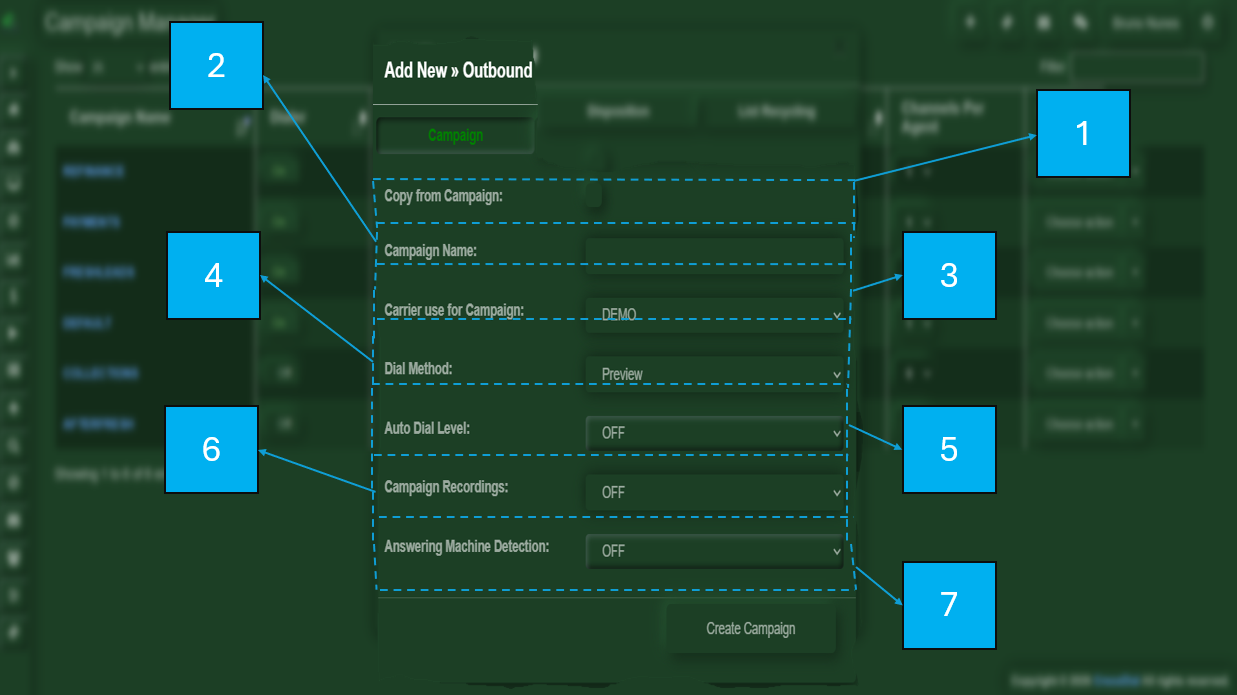
Copy from Campaign: This option allows you to copy the configuration from an existing campaign. If no campaign is available to copy from, the configuration will need to be set manually.
-
Campaign Name: Enter the name for the campaign to be created.
-
Carrier Used for Campaign: Select the service provider through which the calls will be routed.
-
Dial Method: Select your preferred dialing method (Preview, Predictive, or Crocomode).
-
Auto Dial Level: Specifies the number of simultaneous calls to be placed.
-
Campaign Recording: Select whether you want calls to be recorded.
-
Answering Machine Detection: Determines whether the response on the other end of the line is a voicemail.