
Status & Control Bar
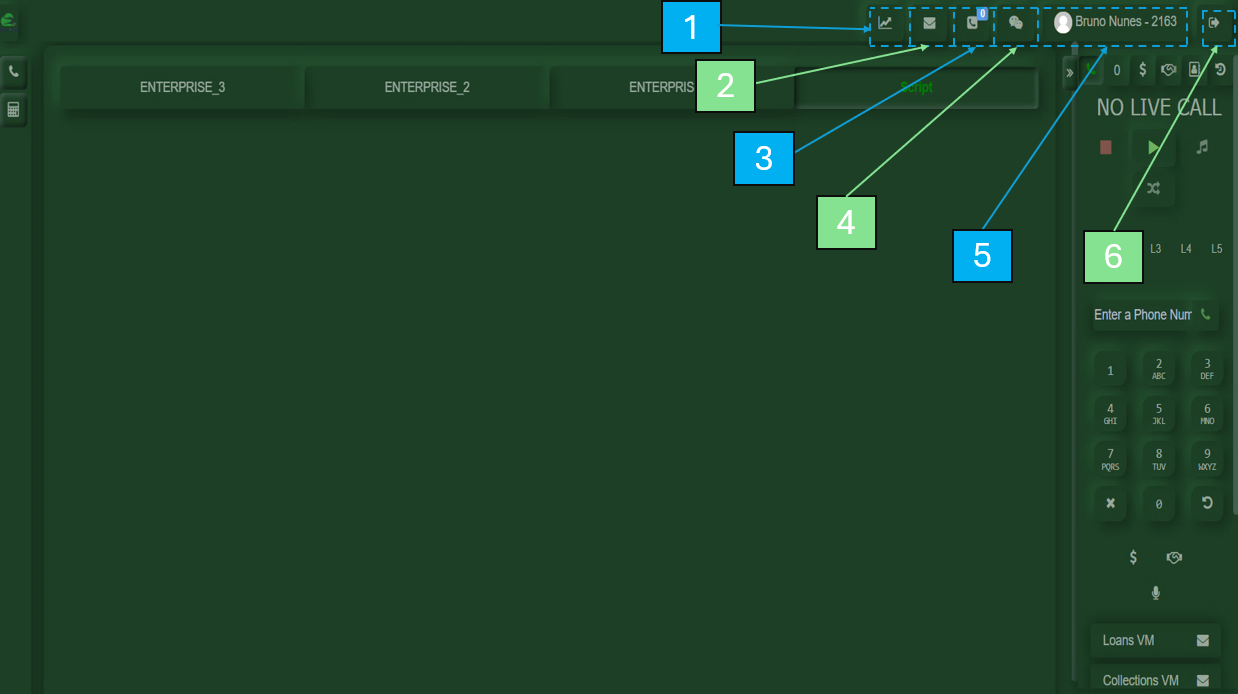
Within the main user interface, you will find several available options:
1.My Stats
Displays your activity metrics, including: First Activity, Last Activity, Login Time, Total Calls, Break, Pause, Available, and Talk time.
2.Voicemails
Shows the voicemail messages received in your account.
3.Callbacks
Displays calls returned by customers.
4.Chat
Your personal chat for communication.
5.My Profile
Allows you to view your name, interface color, and other personalization settings.
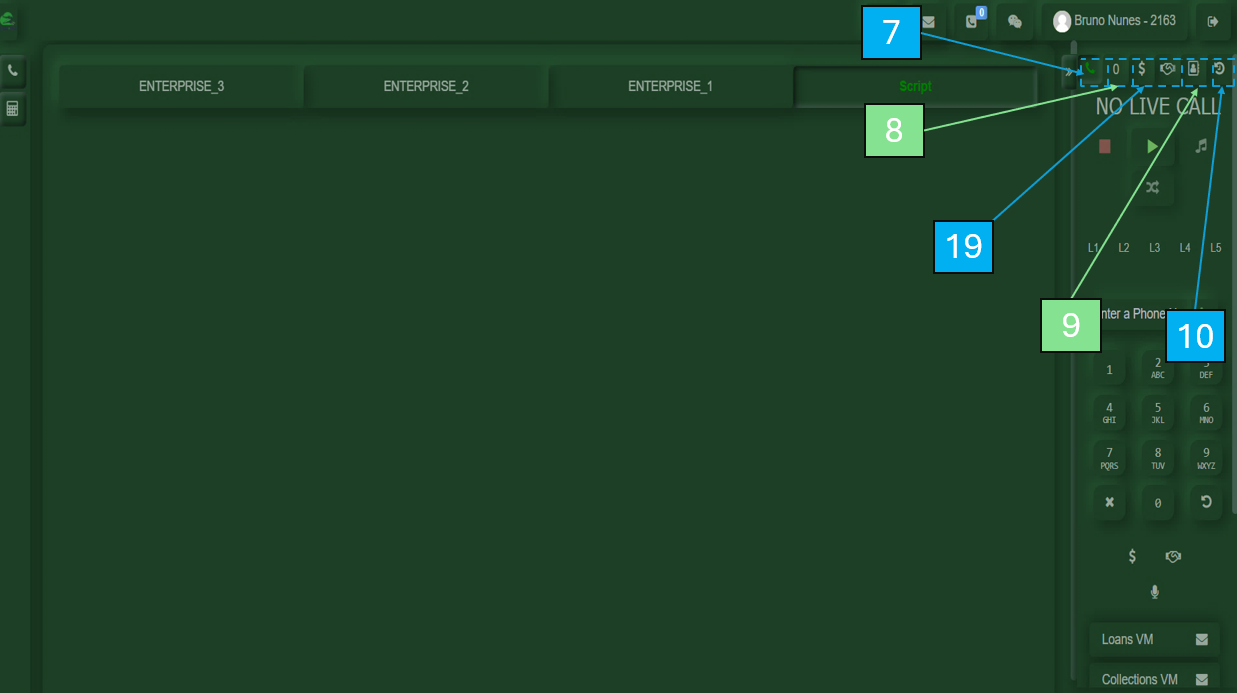
8.Call Queue
Displays customers waiting in line to be attended.
9.Phonebook
Contains a list of saved contact numbers for different needs.
10.Call History
Records all calls made, including the numbers dialed.
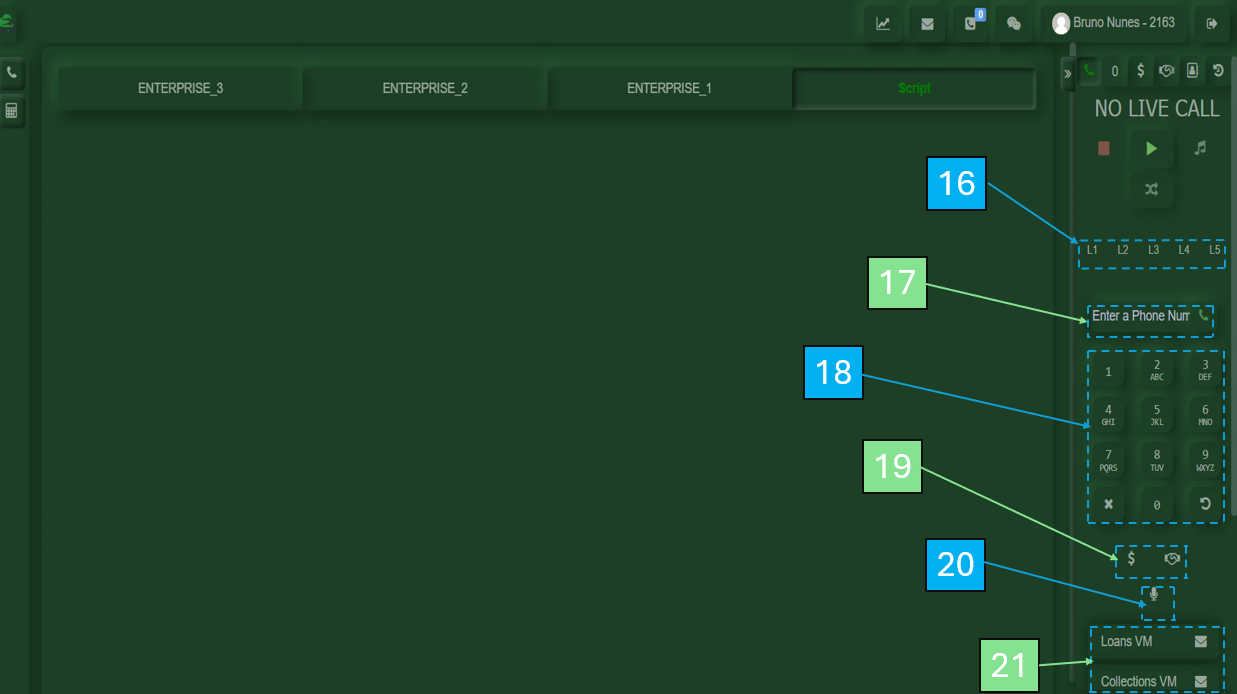
16.Call Line Management
Allows you to manage multiple call lines, including placing customers on hold while handling others.
17.Manual Call Option
Allows you to place a call by entering the customer’s number.
18.Dial Pad
Numeric keypad used for dialing.
19.Call Transfer Buttons
Used to transfer calls to departments such as Loans or Collections. Also available at the top before initiating a call.
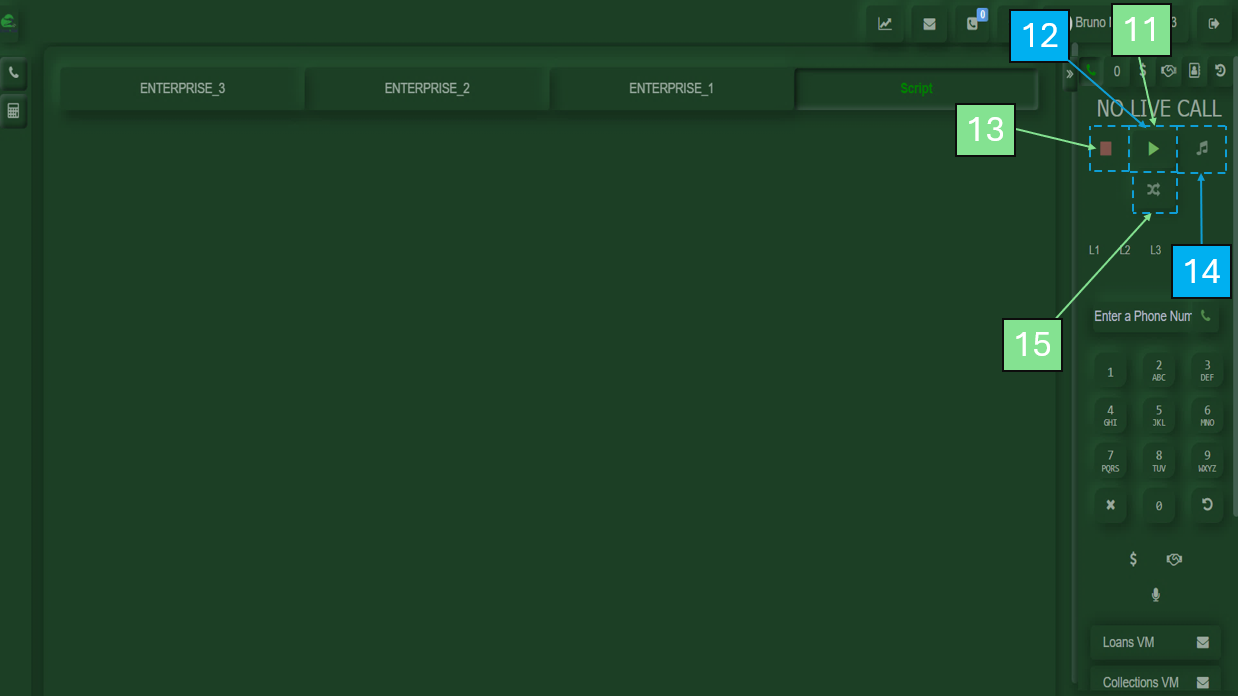
21.Voicemail Broadcast
A pre-recorded message sent to the customer’s voicemail.
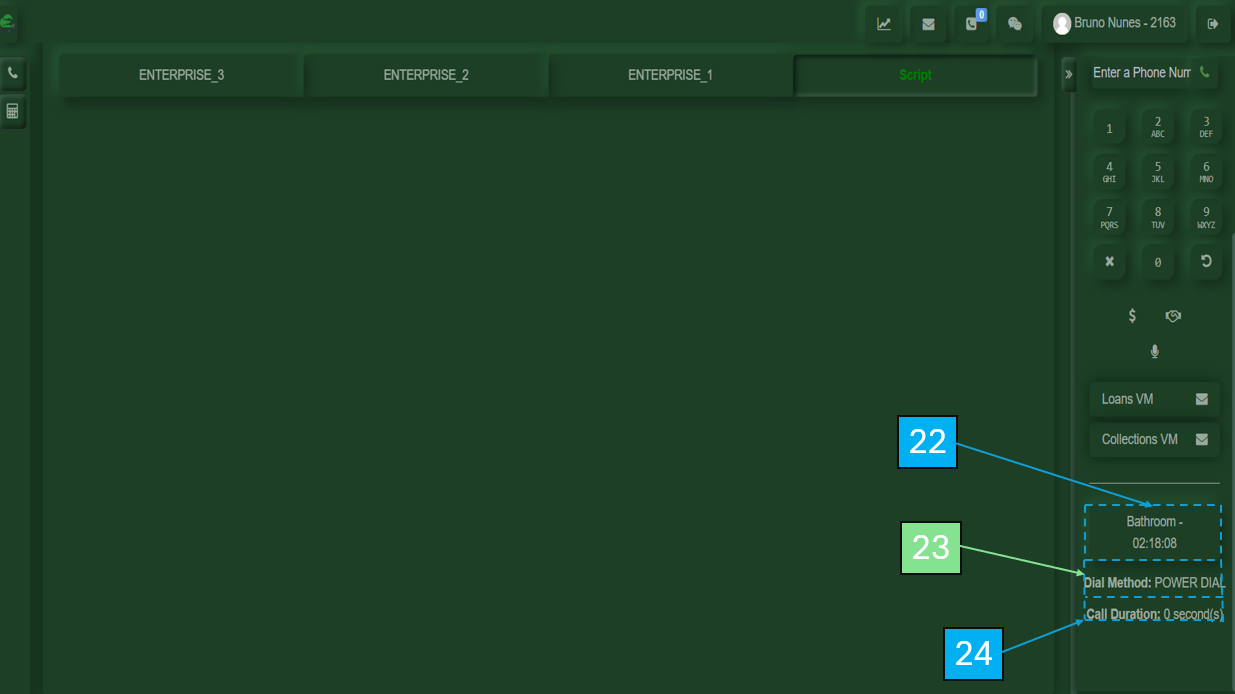
22.Break Time Indicator
Shows how long you have been on break.
23.Dial Method
Displays the current dialing method.
24.Call Duration
Shows the duration of the current call.
No Comments